
Photographers who print regularly
You assess colours for a specific printer and paper combination, and want to be able to calibrate your screen and view a soft proof. Adobe describes colour profiles as part of this soft-proofing workflow.


For regular, colour-critical printing, a monitor with suitable calibration options is a sensible place to start. Extra ports only become decisive if they suit your laptop workflow. You’ll also need a screen that you can position comfortably whether sitting or standing. For a useful soft proof, you’ll need a calibrated screen and the profile for your printer and paper combination.
You assess colours for a specific printer and paper combination, and want to be able to calibrate your screen and view a soft proof. Adobe describes colour profiles as part of this soft-proofing workflow.
You switch between sitting and standing, and want to position the screen comfortably in both positions. Arboportaal recommends placing the screen directly in front of you, with the top just below eye level.
You use the same screen for photo editing and other work. Ports and power delivery through the monitor may be useful, but they need to suit your laptop and won’t replace your print workflow.
Start with the printer and paper combination you want to soft-proof for. Then check that the monitor works well in both desk positions and that its resolution and connections suit your workspace.
| What to consider | What should you check? | Who is this most important for? |
|---|---|---|
| Colour for printing | Compare the calibration options and stated colour gamut of the exact model. Check that you can use the profile for your printer and paper combination. | If I want to assess colours for a specific print, I focus on calibration and the correct output profile. Around 33% of consumers put print colour first. |
| Screen position | Check the stand’s adjustment range and whether a monitor arm, if needed, will fit. Assess the position both sitting and standing. | If I use my desk sitting and standing, I need to be able to position the screen properly in both positions. Around 27% of consumers give working posture the highest priority. |
| 4K detail and workspace | Check the model’s resolution, screen size and external dimensions, including the stand. Compare these with your desk and the workspace you need. | For anyone prioritising photo detail and the layout of their editing screen, resolution and available desk space are both important. Around 20% of consumers put detail checking first. |
| Laptop connection | Check that your laptop supports the video connection and compare its power requirements with the power the monitor delivers via USB-C. | If I want to use my laptop with as few separate connections as possible, I also check that the chosen connection supports both video and power. Around 20% of consumers prioritise laptop convenience. |
A colour gamut specification alone doesn’t show how a particular printer and paper combination will look in a soft proof. Adobe also specifies a calibrated screen and the profile for that printer and paper.
Before buying, work out how you’ll calibrate the screen and which output combination you want to soft-proof for.
Depending on your workflow, you may need a separate calibration solution. You’ll also need the appropriate printer and paper profile for soft-proofing.
Adjustment ranges vary by model and may not be sufficient for your desk and setup. A screen that’s positioned well when you’re standing won’t automatically be right when you’re sitting.
Compare desk heights and the stand’s adjustment range, and test the position you want in both postures. If you’re using a monitor arm, check its VESA mount and weight capacity too.
If the stand doesn’t adjust far enough, you may need a suitable monitor arm.
The monitor port and available power need to suit your laptop’s video support and power requirements.
Check the specifications of both devices separately; don’t rely on the presence of USB-C alone.
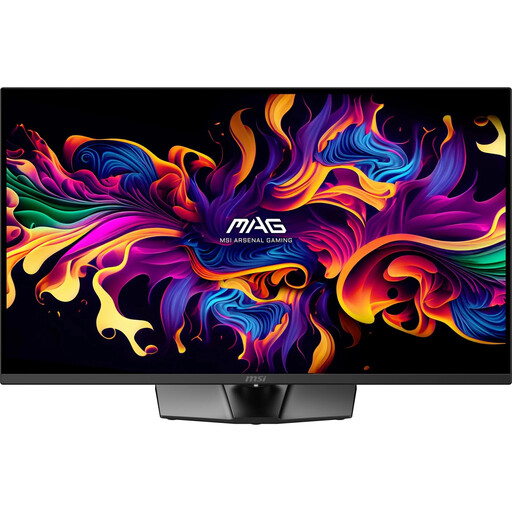
The ColorEdge CG2700X is a 27-inch 4K model for anyone who values colour management and calibration.
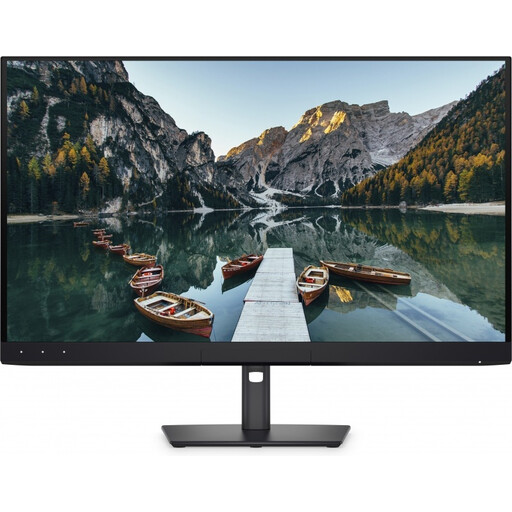
The SW272U is a 27-inch 4K photo monitor with specified calibration and adjustment features.
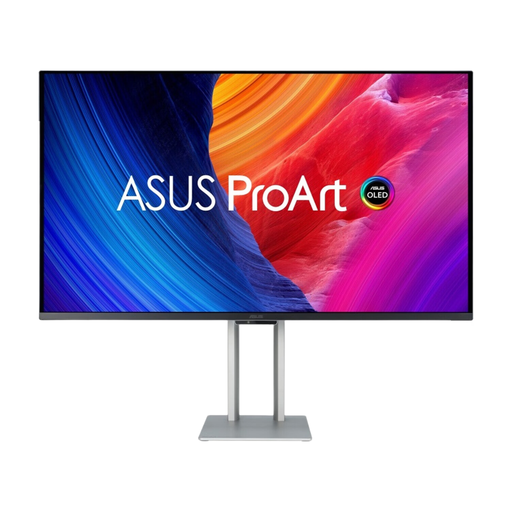
The ProArt PA279CRV combines a 27-inch 4K screen with adjustability and USB-C.
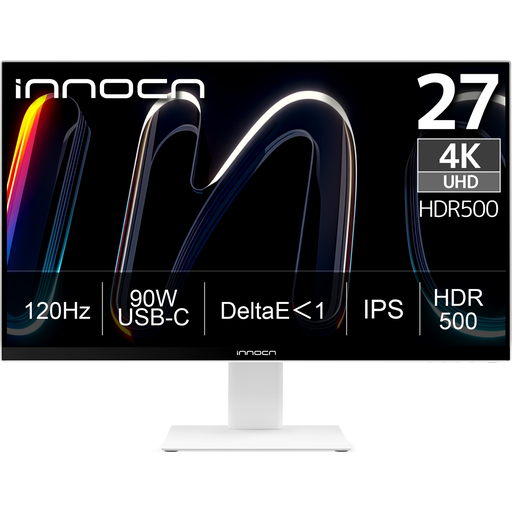
The UltraSharp U2725QE is a 27-inch 4K hub monitor with a height-adjustable screen.
This Joybuy selection includes 4K monitors for photo editing with stated colour, calibration, adjustment or connectivity features. When preparing prints, always check the calibration process and the profile for your printer and paper combination.
 No image available
The stated colour gamut may be relevant if your workflow uses Adobe RGB. Also check how you’ll calibrate the screen for printing.
The product specifications list 98% Adobe RGB, 0–110 mm of height adjustment and USB-C with up to 15 W Power Delivery. The product information notes that this won’t replace the power adapter for most laptops.
 No image available
The built-in colorimeter listed may be useful if you want to make calibration part of your photo workflow. Check that the planned calibration process suits the way you work.
The product information lists 94% Adobe RGB, 3840 × 2160 pixels and an ergonomic stand with height, tilt, swivel and pivot adjustment.
 No image available
This model could suit you if you’re looking for 4K detail and an adjustable sit-stand setup. Treat the stated colour gamut as a specification, not a guarantee of a matching print.
The listed specifications include 3840 × 2160 pixels, 99% Adobe RGB, DeltaE < 1 and 150 mm of height adjustment. The product information also lists tilt, swivel, pivot and VESA 100 × 100 mm.
 No image available
The 4K resolution may be useful for checking photo detail. Separately, check that the screen and calibration process are suitable for your print workflow.
The product information lists up to 13 cm of height adjustment and VESA mounting. The description warns that the QD-OLED panel may be susceptible to burn-in.
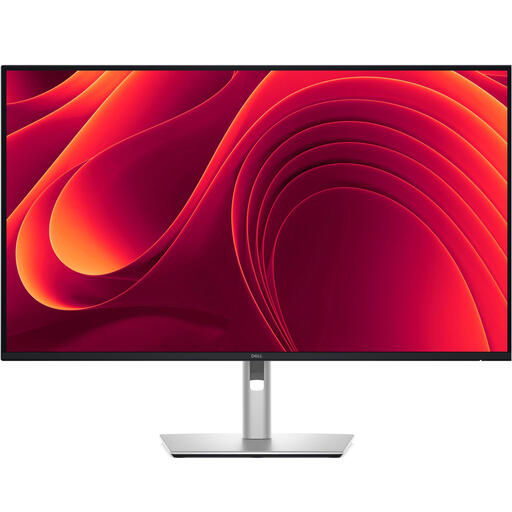 No image available
This model could suit a shared photo and laptop workstation if its stated connections and adjustability work with your equipment.
The product information lists USB-C with 90 W Power Delivery, RJ45 and 150 mm of height adjustment. Check video and power compatibility with your laptop.
No. That percentage is a stated feature of a specific screen and doesn’t guarantee a match with a print. Adobe also recommends a calibrated monitor and the profile for the printer and paper combination being used for a meaningful soft proof.
Place the screen directly in front of you and, following Arboportaal’s guidance, set the top just below eye level. Check the position again after adjusting the desk, and before buying, make sure the stand or a suitable monitor arm will let you do this in both positions.
Depending on the model and your setup, you may need a separate calibration solution or monitor arm. For consumer purchases in the Netherlands, the manufacturer’s warranty is separate from your statutory rights. According to the Dutch government, if there’s a problem with the product, you should contact the seller to find a solution. For online consumer purchases, you usually have 14 days to change your mind; check the terms and any exceptions that apply to your specific purchase.
For employees who work with display screens for more than two hours a day, Arboportaal lists requirements including an adjustable-height screen. Employers are responsible for providing a safe workplace. This isn’t automatically a product requirement for every private buyer. The European Commission also describes an A to G energy label for monitors sold on the EU market; check the label for the exact model.