
Photographer preparing prints
You want to assess colours and tones before printing, and can benefit from a well-maintained monitor profile and soft proofing. Adobe describes colour profiles and monitor calibration as part of colour management.


Choose a 4K monitor for photo printing based on your colour workflow: calibration and soft proofing with the profile for your intended output matter more than 4K alone. Adobe describes colour profiles and monitor calibration as parts of colour management. At a shared desk, adjustable workstation settings and connections that work with every laptop also matter.
You want to assess colours and tones before printing, and can benefit from a well-maintained monitor profile and soft proofing. Adobe describes colour profiles and monitor calibration as part of colour management.
You want to manage settings when users change and reset the workstation as needed. EIZO describes scheduled calibration for the ColorEdge CG2700X; Arboportaal highlights height adjustment as a consideration for screen-based workstations.
You want to combine a colour workflow with quick connections. Check that each laptop supports video through the monitor port you plan to use, and that it can supply power if needed.
First decide whether print colour, shared settings, switching between laptops or adjustability is your main purchasing priority. Then compare the monitor features that relate to it.
The percentages below show one possible top purchasing priority for each row among consumers looking for a 4K monitor for this situation.
| What to consider | What to look for | Who should give this more weight? |
|---|---|---|
| Assessing colour for prints | Check the calibration method, output profile and whether your software supports soft proofing. | If I’m preparing colour-critical prints, I want to be able to calibrate the on-screen image and assess it using the profile for my intended output. Around 36% of consumers put print colour first. |
| Sharing settings with colleagues | Check how settings are managed and agree who will calibrate the monitor. | When colleagues use the same screen, I want us to be able to agree on colour settings and calibration. Around 29% of consumers prioritise shared settings. |
| Connecting and switching laptops | For each laptop, check that video output works through the port you plan to use and that its power delivery is sufficient. | If I regularly switch between laptops, I want to connect them for display and, where possible, power using a suitable port. Around 21% of consumers prioritise switching between laptops. |
| Readjusting the screen and desk | Check the height adjustment, reflections, desk space and positioning in relation to windows. | At a shared workstation, I want to be able to adjust the screen and setup for different users. Around 14% of consumers prioritise adjustability. |
You can only meaningfully compare a screen and a print as part of a colour-managed workflow. Resolution or colour gamut alone won’t predict the result.
Check how to calibrate the monitor and use the profile for your intended output to create a soft proof.
Calibration and setting up soft proofing take time and may require additional tools.
Convenient connections and colour management solve different problems. A hub function doesn’t prove that a monitor is right for your print workflow.
Compare video and power requirements for each laptop, and assess the calibration options separately.
Switching between devices may require extra cables or additional steps.
Additional cover is separate from your rights if a product is faulty. The Dutch government says the retailer is your point of contact if there’s a problem with a product; the Netherlands has no fixed statutory guarantee period.
Read the terms of any additional cover and compare what it offers. If a product is faulty, contact the retailer.
EIZO positions the ColorEdge CG2700X, a 27-inch 4K model, for print and fine art workflows.
According to BenQ, the Creative Pro SW272U combines print-focused colour features with a range of connection options.
The ProArt PA279CRV is a 27-inch 4K option with factory calibration and USB-C.
Dell describes the UltraSharp U2725QE as a 27-inch 4K Thunderbolt hub monitor for desks where convenient connections matter.
ViewSonic positions the ColorPro VP2786-4K for photo editing and print preparation.
These Joybuy product picks include 4K monitors with features suited to photo editing or shared use. Compare each model’s colour workflow, connections and adjustability; a stated colour gamut or validation doesn’t replace a soft proof for your own print process.
 No image available
Could suit you if you’re looking for a 4K screen for creative work; the stated colour gamut alone won’t predict how a print will look.
31.5 inches; 3840 × 2160; 98% Adobe RGB and 10-bit colour according to the product description.
 No image available
Could suit a shared desk where colour comparison and adjustable settings matter; check the calibration conditions and compatibility with your laptop.
27 inches; 3840 × 2160; the product description lists 99% Adobe RGB and DeltaE < 2.
USB-C with 90 W Power Delivery and 150 mm of height adjustment, according to the product specifications.
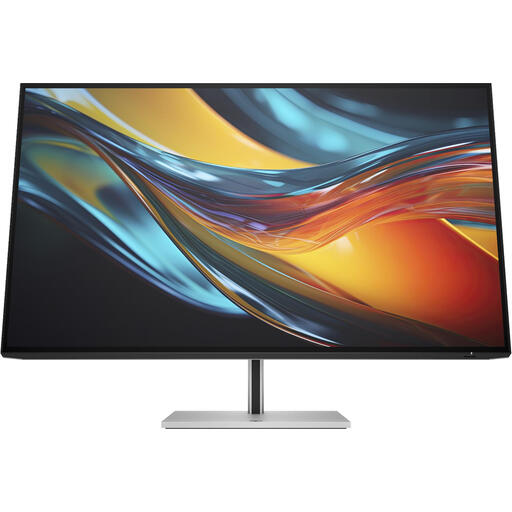 No image available
Could suit you if you switch between laptops at a shared desk, provided your laptop supports the required Thunderbolt connection; the stated colour gamut doesn’t prove that it’s right for your print process.
31.5 inches; 4K; Thunderbolt 4 and built-in KVM, according to the product description.
The product description lists 98% DCI-P3 and up to 100 W Power Delivery.
 No image available
Could suit a shared workstation with several computers; check that the connections and colour workflow work with your equipment and prints.
32 inches; 3840 × 2160; Thunderbolt 3 with 85 W Power Delivery and built-in KVM, according to the product description.
The product description mentions Calman verification and Pantone validations; don’t treat these claims as a guarantee of your print results.
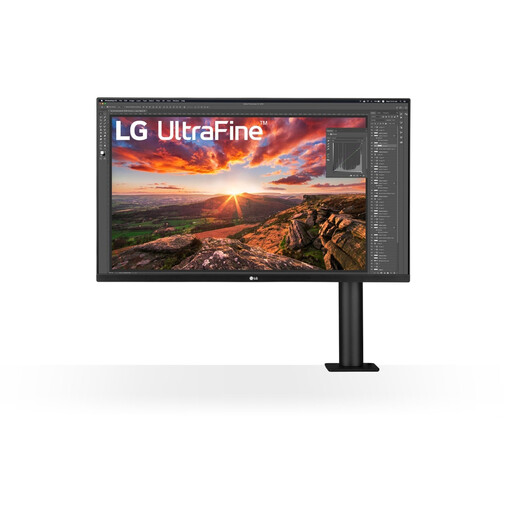 No image available
Could suit you if you want to adjust the monitor setup for different users; 4K resolution and an IPS panel alone don’t prove that it will maintain an accurate print colour workflow.
32 inches; 3840 × 2160; IPS panel, according to the product specifications.
USB-C with 60 W Power Delivery and an adjustable monitor arm, according to the product description.
No. Calibrate the monitor and use a soft proof for your intended output device in a colour-managed application. Adobe describes colour profiles as a way to assess colours on screen; resolution and stated colour gamut don’t replace this workflow.
Agree who will calibrate the monitor and which screen settings and output profiles will be used. Readjust the physical workstation whenever users change; EIZO also says the CG2700X can be scheduled to calibrate without a computer switched on.
Not without checking compatibility. For each laptop, compare its supported video function and power requirements with the specifications of the exact monitor model. BenQ lists 90 W for the SW272U and ASUS lists 96 W for the PA279CRV.
No, additional cover isn’t compulsory. The Dutch government says that consumer purchases must be of satisfactory quality and that the retailer is your point of contact; the Netherlands has no fixed statutory guarantee period. Read the terms of any extra cover and compare it with your existing rights.
Employers must meet requirements for screen-based workstations. Arboportaal notes, among other things, that a screen must be height-adjustable when an employee works at a screen for more than two hours a day. This is a conditional workstation requirement, not a general product specification for every private buyer.