
Student who prints their own photos
Wants to assess colours for a familiar printer and paper type. Adobe explains that the output profile should match the printer, ink and paper combination being used.


For regular colour-critical printing, choose a 4K screen with suitable Adobe RGB coverage and calibration options. If you mainly need it for studying and occasional photo editing, a more versatile 4K model may be enough. Cameranu notes that wide Adobe RGB coverage is relevant for printing, while Adobe explains that the output profile needs to match the printer, ink and paper combination. Also check that the screen and stand will fit on your desk, and that the connection works with your laptop.
Wants to assess colours for a familiar printer and paper type. Adobe explains that the output profile should match the printer, ink and paper combination being used.
As well as the screen size, considers how much room the stand and any optional hood will take up, and whether there are reflections in the room.
Switches between photo work and everyday laptop use, weighing up a convenient connection against colour management features.
Start with your printing workflow: Adobe explains colour management in terms of the profile for the specific printer, ink and paper combination. A stated screen colour space can help you choose, but it cannot predict the print on its own.
| Consideration | What to check | Who is this important for? |
|---|---|---|
| Colour gamut for printing | Check the Adobe RGB coverage of the exact model and which output profile is right for your printer and paper. | If I print my own photos, I want to know whether the screen’s colour space suits my output workflow. Around 33% of consumers give a suitable colour gamut for printing top priority. |
| Calibration and soft proofing | Check whether the model supports hardware calibration, and what software, measuring equipment and output profiles are needed. | If I assess photos regularly, I want to be able to calibrate the screen and use the right profiles. Around 27% of consumers prioritise calibration and soft proofing. |
| Desk space | Measure the available width and depth, then compare them with the dimensions including the stand or hood. | With limited desk depth, I want to know in advance whether the screen and stand will fit without taking over my workspace. Around 20% of consumers make physical fit their top priority. |
| Laptop connection and accessories | Check USB-C video support and your laptop’s required charging power; also see which cables or measuring equipment are included. | If I use the same screen with my laptop, I want to know whether the connection provides a picture and enough power. Around 20% of consumers prioritise laptop convenience and included accessories. |
Resolution and HDR do not tell you how a particular printer, ink and paper type will reproduce colours.
Check the colour gamut, calibration options and suitable output profile separately before assessing a soft proof.
The stand and any optional hood take up space too; the screen size alone will not tell you whether the setup will fit on a small desk.
Compare the dimensions of the exact model with the available width and depth of your desk.
A single-cable setup will work only if the laptop supports the required video signal and the available power is sufficient.
Compare the connections and power requirements of both devices, and check which cables are included.
A commercial extended warranty does not replace your statutory rights if a product is faulty.
Check what extra cover is actually included, and contact the seller if the product is faulty. The Dutch government explains consumer rights in the Netherlands.
BenQ Netherlands lists the PhotoVue SW272U as a 27-inch 4K model with 99% Adobe RGB coverage and hardware calibration.
EIZO Netherlands lists the ColorEdge CS2740 as a 27-inch 4K screen with 99% Adobe RGB coverage and hardware calibration.
ASUS Netherlands lists the ProArt PA279CRV as a 27-inch 4K model with 99% Adobe RGB coverage and an adjustable stand.
MSI lists the Modern MD272UPHG as a 27-inch 4K screen with 94% Adobe RGB coverage, KVM and USB-C power delivery of up to 98 W.
This Joybuy selection includes 4K monitors for photo editing, studying and general use. Compare the stated colour space and connections with your printing workflow, and measure your desk space in advance.
 Image unavailable
A candidate for 4K photo editing; check that its colour coverage and calibration options suit your printing workflow.
27-inch, 4K UHD, IPS and 60 Hz.
 Image unavailable
An option for studying and general use; check that its stated colour space suits your printing needs.
32-inch, VA panel, 3000R curvature and HDR10.
The product information lists 100% sRGB.
 Image unavailable
The height-adjustable stand can help you position the screen on your desk; also check the colour specifications required for your printing workflow.
IPS panel, 60 Hz and 4 ms.
The product information lists HDMI, DisplayPort and a matt anti-reflective screen.
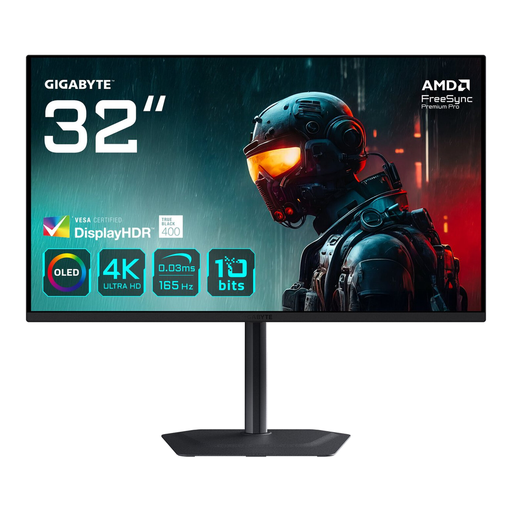 Image unavailable
An option if you’re looking for a larger 4K screen; measure the available space and check the colour specifications for your printing workflow.
31.5-inch, OLED and 3840 × 2160 pixels.
 Image unavailable
The stated Adobe RGB coverage may be relevant for photo printing; check how the stated DeltaE value was measured and which calibration options suit your workflow.
IPS, 120 Hz and a height-adjustable stand.
The product information lists 99% Adobe RGB, DeltaE < 1 and USB-C with 90 W Power Delivery.
No. Screen coverage alone cannot predict the print. Use a calibrated monitor profile and, where available, an output profile that suits your printer, ink and paper. The paper and ambient light also make a difference.
Adobe explains how to print with colour managed by Photoshop or by the printer driver. If you choose to let Photoshop manage colours, select the output profile that suits your printer and paper, and make sure the driver does not apply colour management again.
Only if the laptop provides a compatible video signal through that connection and the exact monitor model supplies enough power to charge it. Check your laptop’s requirements, the screen’s power output and the cable.
When you buy remotely from a business, you will generally have a 14-day cooling-off period; whether it applies depends on the circumstances of the purchase. You also have statutory rights if the product is faulty. The Dutch government states that there is no fixed statutory two-year period for this; if a product is faulty, contact the seller.
EU energy labelling rules cover applicable computer monitors and use a scale from A to G. For a specific model, check the product information sheet and EPREL. The rules do not require buyers to choose a particular energy class.