What should you look for when choosing?
Start with the end result: displaying work digitally calls for different colour management choices from preparing colour-critical prints. Then decide whether detail, laptop connectivity or an adjustable workspace is your main practical requirement.
| What to consider |
What should you check? |
Who is this important for? |
| Colour assessment |
Check the colour space of the exact model, whether it can be profiled, and whether you display digital work or prepare prints. |
If I assess prints too, I want to know how my screen display compares with the intended output. Around 36% of consumers put colour assessment first. |
| 4K detail and workspace |
Check the native resolution of 3840 × 2160 pixels, the screen size and the scaling setting on your computer. |
If I want to check crops and fine details, text and images need to remain easy to assess in my workspace. Around 29% of consumers prioritise image detail. |
| Connectivity and power |
Check your laptop's video output, the features of the monitor port and cable, and the power output required. |
If I want to connect my laptop at a single workstation, the video signal and any power delivery need to be compatible. Around 21% of consumers prioritise laptop connectivity. |
| Screen position |
Check the actual height and tilt adjustments, the stand dimensions and the available desk space. |
If I work on my journal for long periods, I want to be able to position the screen comfortably on my desk. Around 14% of consumers prioritise working comfort and screen position. |
4K monitors at Joybuy
These Joybuy products are 4K monitors for assessing image detail and creative workflows. Check that the connections and colour features of each model suit your computer and intended output.
 No image available
ASUS ProArt OLED PA32UCDM 31.5-inch 4K QD-OLED monitor
An option for assessing image detail on a large 4K screen.
31.5-inch QD-OLED panel; 3840 × 2160 pixels (4K UHD).
View at Joybuy
 No image available
BenQ PD3225U 32-inch 4K UHD monitor
Suited to anyone who wants to view 4K detail and set up a laptop workspace with Thunderbolt 3.
32-inch; 3840 × 2160 pixels; Thunderbolt 3 with 85 W Power Delivery; KVM.
View at Joybuy
 No image available
BenQ PD3205U 31.5-inch 4K UHD monitor
Suited to anyone who wants to edit details and factor USB-C power delivery into their choice of laptop workspace monitor.
31.5-inch; 3840 × 2160 pixels; IPS panel; USB-C power delivery up to 90 W; 99% sRGB and Rec.709 coverage.
View at Joybuy
 No image available
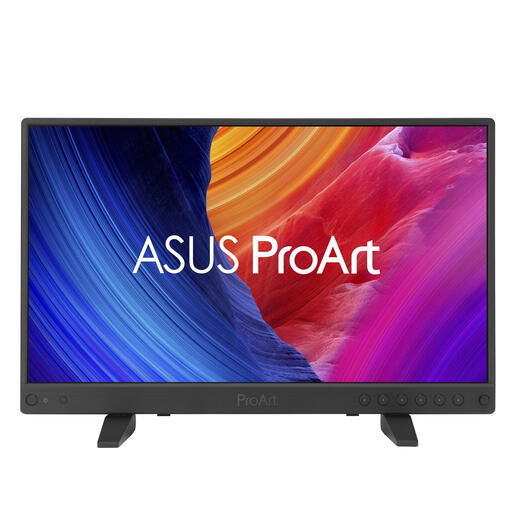
ASUS ProArt PA16USV 15.6-inch 4K UHD monitor
An option for anyone looking to compare 4K detail and colour features for creative work.
15.6-inch; 3840 × 2160 pixels; Calman calibration with ΔE < 2; 100% sRGB and Rec.709 coverage; USB-C with DisplayPort Alt Mode; 12G-SDI.
View at Joybuy
Frequently asked questions
Do I definitely need an Adobe RGB monitor for this portfolio?
Not necessarily. First decide whether you mainly present digital images or prepare colour-critical prints. For prints, the suitable colour space, monitor profile and output profile all matter; a high coverage percentage alone does not guarantee a match with the print.
Can I connect the monitor with a single USB-C cable?
Only if the monitor supports the video signal you want over USB-C, your laptop can output that signal through the relevant port, and the cable is suitable. If you also want to charge your laptop, compare the monitor's power output with your laptop's requirements.
What should I check before making final colour adjustments?
Check the selected colour space and, for colour-critical work, use an up-to-date monitor profile. Adobe explains that the monitor profile determines how document colours appear on screen, and that prints also require an output profile.
Is an HDR label enough to choose a monitor for colour correction?
No. An HDR label alone does not tell you whether the monitor is profiled or suited to your colour workflow. Compare the colour management features and specifications of the exact model with the output you are working towards.
What energy consumption information can I compare?
Electronic displays are covered by the EU energy label, with classes from A to G. Compare the label or product information sheet for the exact version; do not assume that models with the same screen size use the same amount of energy.


