For a harbour time-lapse delivered mainly in SDR, a 4K monitor with a suitable Rec.709 setting and enough room for your preview and timeline is a sensible place to start. If you also want to assess an HDR version, look for tests of the specific display in dark scenes and highlights; an HDR logo alone isn’t enough. If you’re considering OLED, weigh its deeper blacks against the risk from leaving interface elements on screen for long periods. Always check that the size, video connection and any USB-C power delivery are right for your computer.
Who is this for?
For assessing SDR colour
You want to assess evening light, water and shadows for SDR output, and need a suitable colour mode rather than just a claim about a wide colour gamut. Adobe describes separate colour management settings for different output versions; ASUS and BenQ list Rec.709 capabilities for specific models.
For editing on a single screen
You want to arrange your 4K preview and timeline in one workspace, and need to weigh screen size against the space available on your desk. BenQ and ASUS list 4K models in different screen sizes.
For creating an HDR version too
You want to assess HDR output as well as edit, so you’ll need to weigh black levels and highlights against using static editing tools. RTINGS discusses both OLED’s black levels and the risk of burn-in when static image elements remain on screen for long periods.
What should you look for?
First decide whether you’ll deliver in SDR only or in HDR as well. Then compare the colour settings, workspace and connections that suit your editing setup.
| What to consider |
What should you check? |
Who should prioritise this? |
| Colour for SDR |
Check the output colour space for your editing project and whether the exact model has a suitable Rec.709 mode and calibration options. |
If I mainly deliver an SDR version, I want to assess evening light and shadows with a suitable colour setting. Around 36% of consumers put SDR colour assessment first. |
| Room for the image and timeline |
Compare screen size, stand dimensions, viewing distance and the scaling setting you want to use. |
If I want to see the preview and timeline side by side, the space on my desk matters too. Around 29% of consumers give editing workspace the highest priority. |
| Video and laptop power |
Check that your computer port and cable support video, and compare the stated charging wattage with your laptop’s requirements. |
If I want to connect video and power with one cable, the computer, cable and monitor must all be compatible. Around 21% of consumers put laptop connectivity first. |
| Dark scenes and HDR |
Decide whether you’re actually producing an HDR version, then compare tests of the specific display for dark scenes, highlights and any local dimming. |
If I also want to assess an HDR version, I’ll look at blacks and highlights, as well as how long fixed interface elements remain on screen. Around 14% of consumers give HDR assessment the highest priority. |
Pitfalls to avoid
-
Taking an HDR logo as proof of accurate HDR assessment
How dark scenes look depends partly on the specific panel and how any local dimming is implemented. An HDR label alone doesn’t tell you enough about how a display will show your HDR footage.
First decide whether HDR is actually one of your output formats. Then compare image tests for the specific model rather than relying on its HDR label alone.
-
Choosing OLED without considering a static editing interface
OLED can display deeper blacks, but RTINGS notes the risk of burn-in when the same static elements are displayed for long periods.
Weigh that risk against the benefits for dark images and how long fixed interface elements will be on screen. Compare suitable IPS models too.
-
Assuming every USB-C connection carries video and enough power
A USB-C port will work only if the computer port and cable support the required video function and the power delivery suits your laptop. You may need a separate charger or another compatible connection.
Check that the computer port and cable you’ll use support video, then compare your laptop’s power requirements with the specifications for the exact monitor model.
Brands to consider
ASUS
The ProArt PA279CRV is a 27-inch 4K IPS option for anyone looking for a Rec.709 preset and USB-C.
- ASUS lists 3840 × 2160 pixels, a Rec.709 preset and USB-C with DP Alt Mode and 96 W Power Delivery for this model.
- HDR10 support alone doesn’t confirm that the display is suitable for assessing an HDR master. Also check that its connections work with your computer.
BenQ
The Creative Pro PD3225U offers a larger 4K workspace for anyone who wants to arrange their preview and editing tools on one screen.
- BenQ lists a Rec.709 mode, a factory calibration report and Thunderbolt 3 with 85 W Power Delivery for this model.
- Compare the stated charging wattage with your computer’s requirements. Manufacturer specifications aren’t an independent measurement of your setup.
LG
The UltraFine 27UP850K-W is a 27-inch 4K IPS option with USB-C for a laptop setup.
- LG lists typical 95% DCI-P3 coverage, DisplayHDR 400 and charging up to 96 W for this model.
- LG says the LG Calibration Studio software isn’t included. The HDR label doesn’t replace an assessment of dark scenes on the specific model.
Dell
The UltraSharp U2723QE is a 27-inch 4K IPS Black option for anyone looking for a USB-C hub.
- Dell lists 3840 × 2160 pixels, 100% Rec.709, up to 90 W power delivery and a stated 2000:1 contrast ratio for this model.
- Consider these model specifications separately from current availability and performance in your own setup.
EIZO
The ColorEdge CS2740 is a 27-inch 4K option for anyone who wants to check colour reproduction periodically.
- EIZO lists hardware calibration with ColorNavigator for the CS2740.
- This model-specific feature doesn’t prove that an individual setup is correctly calibrated without checking it.
Joybuy monitors for a 4K workstation
These monitors offer a larger 4K workspace for editing, with models for both SDR colour work and general 4K viewing. Compare the specific colour information and connections with your output requirements and computer; an HDR label alone doesn’t tell you how well a display shows dark scenes.
 No image available
Philips 32E1N1800LA 32-inch VA 4K UHD monitor
A 32-inch screen for anyone looking for a larger 4K workspace for footage and editing tools.
3840 × 2160 pixels, VA panel and HDR10 support. HDR10 alone doesn’t show how the display handles dark scenes.
The product description lists a tilt-adjustable stand.
Joybuy
 No image available
CRUA CR320QB curved 32-inch 4K monitor
A curved 32-inch screen for anyone considering a more spacious 4K workspace.
VA panel, 3840 × 2160 pixels, 3000R curvature and HDR10 support. The product title also lists 100% sRGB; that alone doesn’t tell you how dark HDR scenes will look.
Joybuy
 No image available
BenQ PD3225U 4K monitor
A good fit for anyone looking to pair a larger screen with a Rec.709 mode for SDR editing.
BenQ lists a 31.5-inch screen, 3840 × 2160 pixels, an IPS panel and a Rec.709 mode.
Thunderbolt 3 with 85 W Power Delivery; check that the power and connection suit your computer.
Joybuy
 No image available
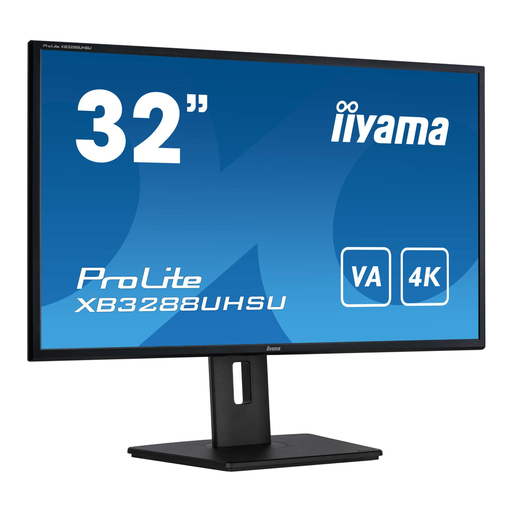
iiyama ProLite 32-inch VA 4K monitor
A 32-inch 4K option for anyone who wants to arrange their preview and timeline on a larger screen.
The product description lists 3840 × 2160 pixels, a VA panel, HDMI and DisplayPort.
According to the product description, the stand is height-adjustable and has a pivot function.
Joybuy
 No image available
BenQ PD3205U 31.5-inch 4K monitor
A good fit for anyone looking for a larger 4K workspace and Rec.709 coverage for SDR editing.
The product description lists 3840 × 2160 pixels, an IPS panel and 99% sRGB and Rec.709 coverage.
USB-C with 90 W Power Delivery and a KVM switch; check your computer’s connection and charging requirements.
Joybuy
Frequently asked questions
Should you choose HDR because your footage includes evening light and harbour lights?
Not for that reason alone. First decide whether you’ll deliver an SDR version or an HDR version as well, and set your editing colour space accordingly. Adobe describes separate colour management settings for different output versions; for HDR, also compare how the specific display handles dark scenes.
Can you connect your laptop with a single USB-C cable?
Only if the laptop port and cable you’re using support video and the monitor’s power delivery suits your laptop. ASUS lists DP Alt Mode and 96 W Power Delivery for the PA279CRV; BenQ lists Thunderbolt 3 and 85 W for the PD3225U. Check these model specifications against your computer’s requirements.
How can you keep colour reproduction in check?
Use a monitor setting that suits your output and check colour reproduction as part of your workflow. EIZO lists hardware calibration with ColorNavigator for the CS2740; this is a feature of that model, not proof that a display is already correctly set up without checking it.
Who can help if a monitor is faulty, and do you get a cooling-off period when buying online?
For a consumer purchase in the Netherlands, the seller must offer a solution if the product doesn’t meet the statutory guarantee requirements, as explained by the Government of the Netherlands; a manufacturer’s warranty doesn’t replace this right. Online purchases generally come with a statutory cooling-off period of up to 14 days after delivery, subject to legal exceptions, according to ACM ConsuWijzer.


