
SDR filmmaker who grades colour
You’re editing a film about visitors to a mill for SDR output and want a suitable Rec.709 display, rather than choosing based on an HDR logo alone. Adobe describes Rec.709/SDR as a colour workflow option in Premiere.


When choosing a 4K monitor for editing a mill film in the evening, start with your intended output: for SDR, a Rec.709 mode matters more than an HDR logo alone. Then weigh up the space you need for the preview and timeline, adjustability and any USB-C power delivery. Stated colour coverage doesn’t, by itself, tell you how the screen will perform in your workspace.
You’re editing a film about visitors to a mill for SDR output and want a suitable Rec.709 display, rather than choosing based on an HDR logo alone. Adobe describes Rec.709/SDR as a colour workflow option in Premiere.
You want to be able to adjust your screen position and the lighting around your workspace while you edit. Arboportaal also highlights the importance of setting up your screen-based workstation properly.
You want room for the preview and editing panels, and need to check whether USB-C can provide both video and enough power for your laptop.
First decide whether your film will be finished in SDR or HDR. Then compare the space available on your desk, and only after that check whether the connections and any laptop power delivery will work with your equipment.
| What to consider | What should you check? | Who is this most important for? |
|---|---|---|
| Colour display for your output | Check the colour modes, the stated coverage for the exact model and the colour settings in your editing sequence. | If I’m delivering the film in SDR, I want to be able to choose a Rec.709 mode rather than relying on an HDR logo. Around 31% of consumers prioritise a colour workflow that suits their needs. |
| Working during an evening session | Check whether the stand is adjustable, how the screen surface handles light sources and whether you can adjust the brightness. | During a long evening editing session, I want to adjust the screen position and lighting, not just turn up the brightness. Around 31% of consumers put their working environment first. |
| Room for the preview and timeline | Compare the screen size with your desk, display scaling and any space needed for a monitor arm. | If I need to keep the preview and timeline on screen at the same time, the physical screen area matters more to me than extra connections. Around 23% of consumers prioritise this workspace. |
| Laptop connection via USB-C | Check that your laptop outputs video via USB-C and that the stated charging power and cable are suitable. | If I want to connect my laptop with one cable, that connection must support video and provide enough power. Around 15% of consumers prioritise this combination. |
An HDR label doesn’t, by itself, tell you whether a monitor suits your HDR workflow. VESA distinguishes between different performance levels.
First decide whether you’re outputting in SDR or HDR. Then compare the features that matter for your workflow, rather than looking at the logo alone.
For demanding HDR output, you may need a dedicated grading setup.
Colour coverage, the selected colour mode and the ability to calibrate are all different things.
Check which mode you’re using and whether your editing workflow requires a calibration check.
If your workflow requires calibration, remember to factor in the calibration equipment you’ll need.
USB-C video requires support from the laptop, and the available charging power must be suitable for it.
Compare your laptop’s video output and power requirements with the port and power delivery of the exact monitor model.
Depending on the connection, you may need a separate power supply, a compatible cable or an adapter.
The PD2705U is a 27-inch 4K model to consider for SDR editing with Rec.709.
The ProArt PA279CRV is a 27-inch 4K model to compare if colour modes and laptop connectivity matter to you.
The 27UP850K-W and 32UN880K-B offer different sizes if you’re considering a more compact screen or a larger workspace with an arm.
The ColorEdge CS2740 is a 4K model to look into if hardware calibration is important to you.
The UltraSharp U2723QE is a useful comparison point for a 27-inch 4K monitor with a USB-C hub.
These Joybuy product picks focus on 4K editing, with options for colour work, laptop connectivity and a larger workspace.
 Image unavailable
An option if you want a larger workspace and plan to include calibration in your workflow.
31.5 inches, 4K UHD and QD-OLED; the product information lists 99% DCI-P3, an integrated colourimeter and automatic calibration cycles.
 Image unavailable
A good fit if you want to consider colour coverage and the option of connecting a laptop via USB-C.
The product information lists 97% DCI-P3, 94% Adobe RGB, factory calibration and USB-C with DisplayPort Alt Mode and 98 W Power Delivery. Check that the power delivery suits your laptop.
 Image unavailable
A compact option to compare if adjustability and a USB-C laptop connection are important to you.
27 inches, 3840 × 2160 pixels and 120 Hz; the product information lists USB-C with 90 W Power Delivery, an adjustable stand and an anti-glare screen. Check your laptop’s USB-C compatibility.
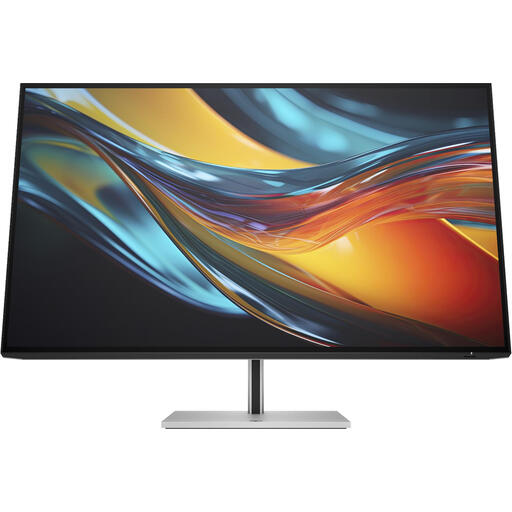 Image unavailable
A larger workspace to consider if you want to arrange your preview and timeline side by side.
The product information lists 98% Display P3, Thunderbolt 4 with up to 100 W of laptop power delivery and a fully adjustable stand. A charger isn’t included as standard, so check that you have a suitable power supply.
 Image unavailable
A good fit if you want to compare a larger 4K workspace and a Thunderbolt connection.
32 inches and 3840 × 2160 pixels; the product information lists Thunderbolt 3 with 85 W Power Delivery, a built-in KVM switch, Calman verification and Pantone validation. Check that the connection and power delivery suit your laptop.
Not just because it has an HDR label. First decide on your intended colour workflow: Adobe distinguishes between Rec.709/SDR and HDR sequence settings in Premiere. Then check the colour mode and the HDR features that matter for your use.
Only if your laptop supports video through that port and the cable and monitor power delivery are suitable for your laptop. Stated power delivery varies by model: BenQ lists 65 W for the PD2705U, ASUS lists 96 W for the PA279CRV and EIZO lists up to 60 W for the CS2740.
Adjust the screen position and brightness to suit your workspace, and pay attention to the lighting around the screen too. Arboportaal notes that workstation setup matters when working at a screen for long periods; monitor settings alone won’t prevent discomfort.
For a typical online consumer purchase, ACM ConsuWijzer says you generally have up to 14 days after delivery to change your mind, subject to legal exceptions. You’re also entitled to a product that is fit for purpose; according to the Dutch government, the Netherlands has no fixed statutory warranty period of two years. If a product becomes defective too soon during normal use, contact the seller.
The European Commission includes computer monitors in the category of electronic displays covered by energy label rules. Check the product information for the exact model for the details that apply to that monitor.