
Student with a small desk
You compare portfolio pages and details, but also want to leave room for your keyboard and sketches, with the screen positioned comfortably for work.


First, measure the available width and depth of your desk, then decide which colour features and connections you need. For colour-critical work, the right colour space and colour management matter more than a 4K or HDR label alone. If you work from a laptop, also check that its video output, cable and charging requirements are compatible.
You compare portfolio pages and details, but also want to leave room for your keyboard and sketches, with the screen positioned comfortably for work.
You submit images digitally or in print and want to match the colour mode and profile to the final output.
You regularly connect your laptop and want to know in advance whether a single cable can handle the display, peripherals and, if needed, enough charging power.
First measure the free space on your desk, then work out which colour space your portfolio requires, and finally check your laptop’s connection.
| What to consider | What to look for when buying | Who should prioritise this? |
|---|---|---|
| Desk space and working posture | Measure the width and depth, including the stand, and leave room for your input devices. BenQ lists a stand depth of 256,8 mm for the PD2705U; check the dimensions of the model you’re considering. | If I also need room for sketches and a keyboard, I want to know how much desk space will be left once the monitor is in place. Around 36% of consumers prioritise desk space and a comfortable screen position. |
| Colour workflow | Find out which colour space your course or printer requires, then check the colour modes of the exact model. BenQ lists 99% sRGB and Rec.709 for the PD2705U; ASUS lists 99% Adobe RGB and 99% DCI-P3 for the PA279CRV. | If you assess digital images or printed work for colour, it’s important to match the screen mode to the output. Around 29% of consumers put their colour workflow ahead of other buying concerns. |
| Laptop connection | Check that your laptop and cable support the video output you want, and compare the monitor’s charging power with your laptop’s requirements. BenQ lists 65 W USB-C Power Delivery for the PD2705U, LG up to 96 W for the 27UP850K-W and Dell 90 W for the P2725QE. | If I connect my laptop often, I want to know whether the chosen connection handles both display and charging, and whether my peripherals can connect to it. Around 21% of consumers make laptop connectivity their top priority. |
| Features versus cost | First work out which colour space and connections your project requires; then compare only models with features you’ll actually use. | If you mainly view pages and layouts, you don’t want to pay for features your project doesn’t need. Around 14% of consumers prioritise avoiding unnecessary features. |
The screen’s diagonal measurement doesn’t tell you how much space the stand takes up. BenQ lists a stand depth of 256,8 mm for the PD2705U.
Measure the usable desk space and compare the monitor’s dimensions, including the stand, before choosing a model.
Colour-critical work may call for calibration tools and proof prints.
The monitors reviewed list different maximum charging capacities; your laptop’s needs depend on its model.
Check your laptop’s video output, cable and charging requirements against the specifications of the monitor you choose.
You may still need to use your laptop’s separate power supply.
According to the Dutch government, the Netherlands has no fixed statutory warranty period. You’re entitled to a product that’s fit for purpose; if there’s a fault, contact the seller.
Keep your proof of purchase and the terms and conditions, and contact the seller if there’s a fault.
The 27E1N1800AE/00 is a 27-inch 4K IPS model for viewing layouts, with a height-adjustable screen.
BenQ positions the PD2705U for design work, with specified colour coverage, colour modes and USB-C.
The ProArt PA279CRV is worth comparing if your project requires a wider colour space.
According to LG, the UltraFine 27UP850K-W combines a 27-inch 4K screen with an adjustable stand and USB-C.
The Pro Plus P2725QE is worth comparing if connectivity and a laptop workstation with a hub are important to you.
This selection includes 4K monitors for portfolios and desk use, including models with adjustable stands and a 15,6-inch screen.
 No image available
An option for comparing layouts if you’re looking for an adjustable screen position.
27 inches, 4K UHD, 3840 × 2160, IPS, 60 Hz and a height-adjustable stand.
 No image available
An option to compare if you want to factor in your laptop connection and the listed colour features.
27 inches, 3840 × 2160 and 4K Ultra HD. The product information lists USB-C with 98 W Power Delivery, factory calibration, 97% DCI-P3 and 94% Adobe RGB.
 No image available
An option to compare if you’re looking for an adjustable stand and a laptop connection.
27 inches, 4K UHD, 3840 × 2160 and IPS. The product information lists 100% sRGB, 99% Adobe RGB, USB-C with 90 W Power Delivery and 150 mm of height adjustment.
 No image available
An option to compare if a laptop connection and DCI-P3 coverage suit your workflow.
27 inches, 3840 × 2160 and 4K Ultra HD. The product information lists 120 Hz, Thunderbolt connections, 99% DCI-P3 and an adjustable stand.
 No image available
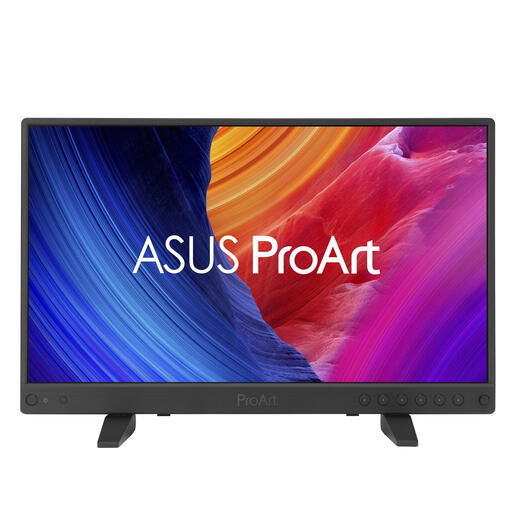
A 15,6-inch option to compare if you have limited desk space.
3840 × 2160 and 4K Ultra HD. The product information lists USB-C with DP Alt Mode, HDMI, a USB hub, 100% sRGB and 100% Rec.709. The stated dimensions with the stand are 357,4 × 109,3 mm.
Only if it benefits your agreed output and colour workflow. First, find out which output settings are needed, then match the monitor mode and profile to them. Adobe describes calibration and profiling as part of colour management; these steps still can’t guarantee that a print will look identical to the screen.
Measure the space needed for both the screen and the stand, and leave room for your input devices. If you want to use a monitor arm, check the VESA size of the exact monitor and make sure the arm and mounting point are suitable; BenQ lists VESA 100 × 100 mm for the PD2705U.
No, it depends on the laptop, cable and monitor. Check that the video output and cable support the display you want, and compare your laptop’s charging requirements with the monitor’s Power Delivery specification.
For many online purchases from a business, you have a 14-day cooling-off period; check whether your purchase is covered by this rule. You’re also entitled to a product that’s fit for purpose, and if there’s a fault, contact the seller. According to the Dutch government, the Netherlands has no fixed statutory warranty period.
According to the European Commission, computer monitors are covered by the energy labelling rules for electronic displays. Check the label and information for the exact model if you want to compare energy consumption.