
Vandaag of morgen in huis

Kwaliteit gegarandeerd

Welkomstaanbiedingen ontgrendelen: GRATIS bezorging | Tot 80% korting | Gratis 30 dagen JoyPlus-proefperiode
Download de app
A 4K monitor offers plenty of detail for office work, gaming, photos and films, thanks to its 3840 × 2160 pixels. But resolution isn’t everything. A screen might be sharp, yet less suitable for fast-paced games, a laptop without the right connection or long hours at your desk.
The three most common pitfalls:
A 27-inch 4K monitor has a high pixel density of around 163 pixels per inch. Text and fine details look sharp, but interface elements may appear smaller. Windows or macOS scaling can help.
A 32-inch 4K monitor gives you more workspace and is often a better fit for video editing, spreadsheets and creative software. At a viewing distance of around 60 to 90 centimetres, a 32-inch screen is generally easier to take in at a glance. Larger screens, such as 37-inch models, need more desk space and a sturdy monitor arm or stand.
Consider the screen’s aspect ratio too. A 4K monitor usually has a 16:9 aspect ratio. Ultrawide models with 3440 × 1440 pixels are wider, but they don’t count as true 4K resolution.
Bear in mind that colour coverage alone doesn’t guarantee colour accuracy. For a photo-editing monitor, calibration options, a suitable colour profile and consistent brightness matter too. Claims about colour reproduction come from the manufacturer’s product information, so check the specifications and display mode before you buy.
A 120Hz monitor delivers smoother scrolling and motion than a 60Hz screen. For a 4K gaming monitor, 165Hz or 240Hz may be worth considering, but only if your computer can deliver enough frames per second.
Also check for:
A built-in USB hub or KVM switch is handy if you use more than one computer. However, check that the model you choose actually has a KVM function; a USB hub alone isn’t enough.
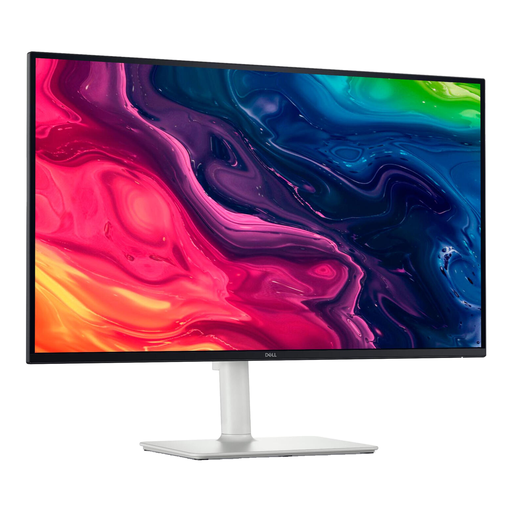
Why it suits this profile: A compact 27-inch IPS screen for everyday office work, streaming and casual gaming. Height adjustment and tilt make it easy to get your basic setup just right.
The specifications list 120Hz, HDMI 2.1, DisplayPort and FreeSync Premium, so you’re not limited to a standard 60Hz office experience.
27-inch IPS panel, 4K resolution, 120Hz, built-in speakers and a stand with 130 mm of height adjustment.
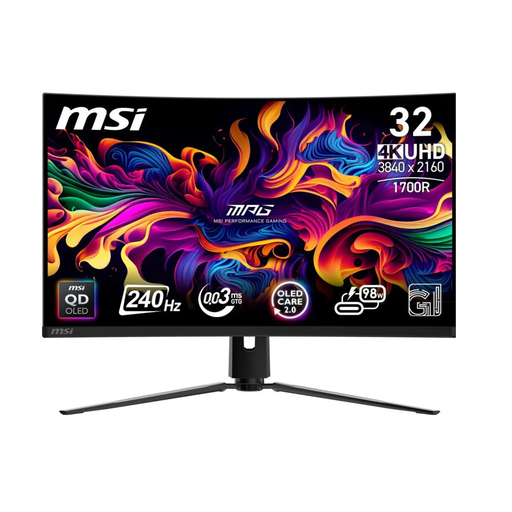
Why it suits this profile: Designed for users looking for a 32-inch screen with a high refresh rate and QD-OLED technology for gaming and entertainment.
The product specifications list HDMI 2.1, 240Hz and OLED screen protection features. Use these features as described in the manual, and remember to enable screen protection when displaying static images.
QD-OLED panel, 4K, 240Hz, USB-C with up to 98W Power Delivery and an adjustable stand.
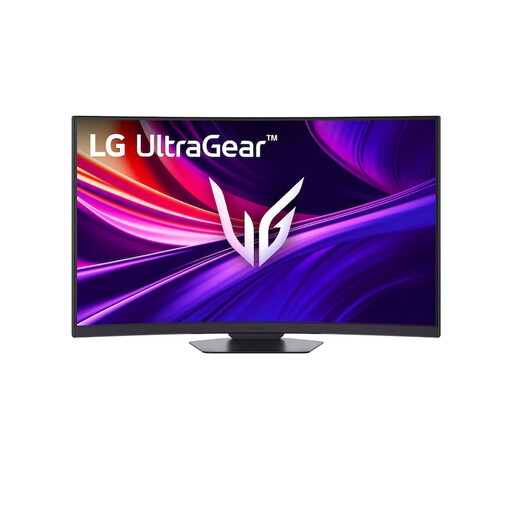
Why it suits this profile: A good choice for gamers and multitaskers who want a large curved screen with a high refresh rate and plenty of connectivity options.
The range of connections is clearly listed: HDMI 2.1, DisplayPort 1.4 and USB-C with 65W. Check in advance that your laptop or graphics card supports this combination.
37-inch curved VA panel, 4K, 165Hz, 1000R curvature, FreeSync Premium Pro and a height-adjustable stand.
We’ve put together a complete, up-to-date list of products that meet these strict selection criteria and the applicable European safety regulations.
Yes. The high pixel density makes text, photos and interface elements look sharp. You may need to adjust your operating system’s scaling settings to make text comfortable to read.
Not always. For office work and 4K at 60Hz, many HDMI 2.0 or DisplayPort connections will do the job. HDMI 2.1 is mainly relevant for 4K at 120Hz or higher, and for modern consoles. Always check the maximum resolution and refresh rate supported by both the monitor and the source device.
It varies depending on the panel, brightness setting and display mode. Check the energy label and the stated power consumption in SDR and HDR. An OLED or large gaming model may use a different amount of power from a 27-inch office monitor. Lowering the brightness and using automatic sleep mode can help reduce consumption.
