
Portrait editor who prints
You assess black-and-white portraits with printing in mind and want to check your greys using a calibrated screen and a suitable soft-proofing workflow.


For print-focused black-and-white editing, calibration, consistent display performance and suitable screen profiles matter. At a shared desk, adjustability and laptop connections may be more important. Then compare the exact model’s native 4K resolution and features: a black-and-white mode or quoted contrast ratio alone won’t tell you what a print will look like.
You assess black-and-white portraits with printing in mind and want to check your greys using a calibrated screen and a suitable soft-proofing workflow.
You share the screen and desk, and may switch between laptops, so an adjustable setup and connections that suit your devices can make a difference.
You focus mainly on darker areas and want to assess contrast claims alongside calibration and the lighting in your workspace.
Best for: regularly assessing portraits for print, with calibration and uniformity as priorities. BenQ lists hardware calibration and uniformity technology for the SW272U; EIZO lists an integrated calibration sensor for the CG2700X.
Bear in mind: check how calibration and profiles fit into your workflow. A black-and-white mode doesn’t guarantee a matching print.
Best for: regularly switching laptops or seating positions, with a need for USB-C video, power delivery and an adjustable stand. ASUS lists up to 96 W of USB-C power delivery for the PA279CRV; LG lists 90 W for the 27UQ850V-W.
Bear in mind: check that your laptop supports video over USB-C and how much charging power it needs. Factory calibration doesn’t automatically confirm the current settings in your workflow.
Best for: portrait editing alongside a need for a USB-C hub or network port. Dell lists a typical contrast ratio of 2000:1 and a network port for the U2723QE.
Bear in mind: a quoted contrast ratio doesn’t measure shadow detail in your workspace.
| Consideration | What should you check? | Who is this important for? |
|---|---|---|
| Greyscale and print preparation | Check the calibration method and screen profile, and whether your editing software supports soft proofing. Adobe describes soft proofing with suitable colour profiles. | When I edit black-and-white portraits for print, I want to assess greys using a suitable profile and soft proof. Around 33% of consumers prioritise print-focused greyscale checks. |
| Switching users and laptops | Check adjustability, video inputs, USB-C video support and the charging power your laptop requires. | When we use the same desk with different laptops, I want to adjust the stand and use the right connection. Around 25% of consumers prioritise switching between users and laptops. |
| Shadow detail and reflections | Compare the quoted contrast ratio and screen coating; assess the screen under the lighting you work in. | When editing dark portraits, I want to assess shadow areas without distracting reflections. Around 25% of consumers put shadow detail and reflections first. |
| Space and workflow costs | Measure the available space with the monitor stand in place, and check which calibration essentials and accessories are included. | If the desk is shared and space is limited, I want to know whether the screen and stand will fit and what my calibration workflow requires. Around 17% of consumers prioritise space and workflow costs. |
A display mode doesn’t, by itself, describe the combination of monitor, profile and printing process.
For print work, use a suitable screen profile and your editing software’s soft-proofing feature. Adobe describes soft proofing as part of a colour-managed workflow.
A model’s quoted contrast ratio isn’t an independent measurement of how it performs in your lit workspace.
Compare the exact models and assess dark images under the lighting you work in.
The quoted charging power varies by monitor and needs to suit your laptop and connection.
Before buying, check that your laptop supports video over USB-C and how much charging power it needs.
The PhotoVue SW272U is a 27-inch 4K photography monitor with calibration and black-and-white display features.
The ColorEdge CG2700X is a 27-inch 4K option for workflows where self-calibration is important.
The ProArt PA279CRV combines 27-inch 4K resolution with USB-C connectivity and an adjustable stand.
The 27UQ850V-W and 27UP850K-W are separate 27-inch 4K models; compare their features individually.
The UltraSharp U2723QE is a 27-inch 4K USB-C hub monitor for a desk where multiple connections and a network port are also important.
These Joybuy products are 4K monitors for portrait editing and shared desk use, with a range of screen sizes, connections and adjustment options.
 No image available
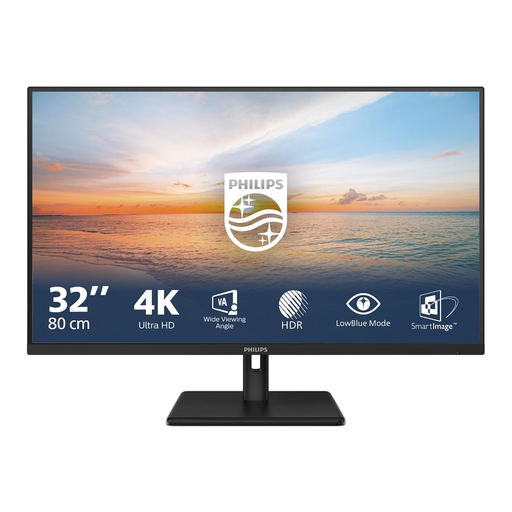
The 32-inch model may suit you if you’re looking for a larger screen at a shared desk.
3840 × 2160 pixels at 60 Hz; VA panel; HDR10; 300 cd/m²; 2× HDMI and DisplayPort; tilt-adjustable stand.
 No image available
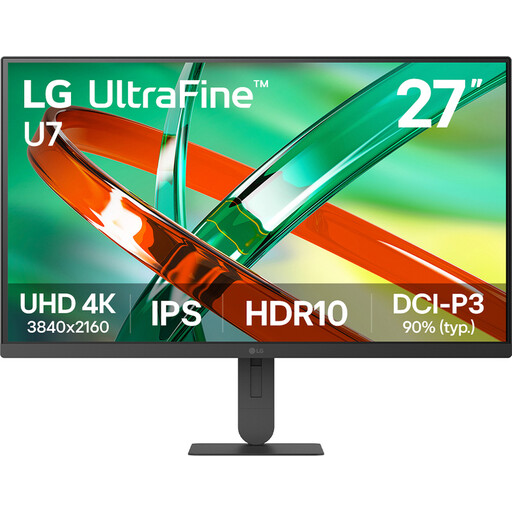
This model may suit you if you’re looking for a 27-inch 4K screen with an IPS panel for portrait editing.
3840 × 2160 pixels; 16:9 aspect ratio; HDR10; 60 Hz; 5 ms response time.
 No image available
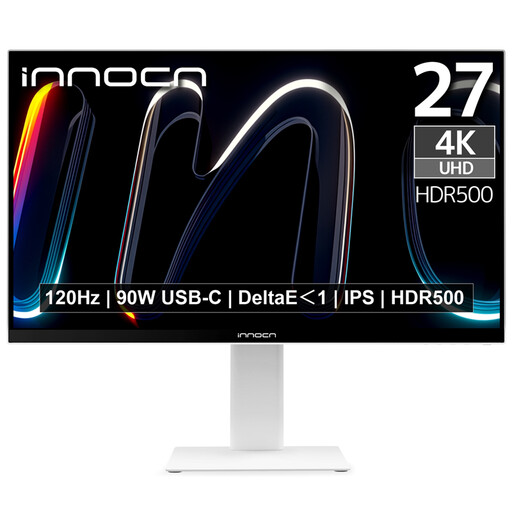
The quoted adjustability and USB-C power delivery may be useful if several people share the desk and use different laptops.
3840 × 2160 pixels; IPS panel; 120 Hz; USB-C with 90 W Power Delivery; stand with height, swivel and tilt adjustment. The product details list DeltaE < 2, 100% sRGB and 99% Adobe RGB; these are quoted product specifications, not independent measurements.
 No image available
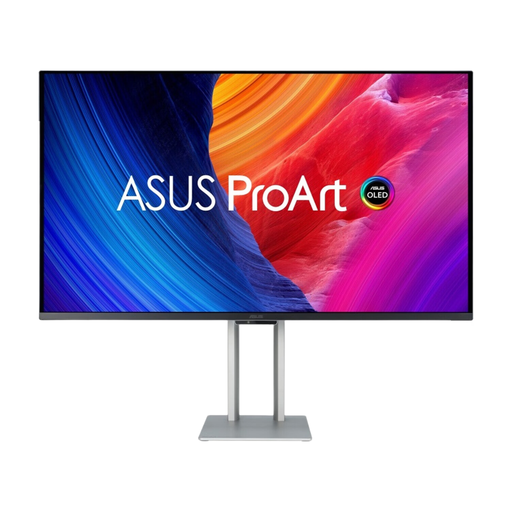
The 31.5-inch model may suit you if you want a larger screen and USB-C power delivery at a shared desk.
3840 × 2160 pixels; QD-OLED panel; USB hub; USB-C with up to 96 W Power Delivery; height adjustment up to 13 cm. The product description warns that the panel may be susceptible to burn-in and recommends screen protection and varying the content as precautions.
 No image available
This model may suit you if you want USB-C connectivity and a network port at your desk alongside portrait editing.
3840 × 2160 pixels; IPS panel; USB-C with 90 W Power Delivery; RJ45 network port; adjustable stand.
No, not if you want to use it to predict how a print will look. BenQ lists this mode on the SW272U, but Adobe also describes using a suitable monitor profile and soft proofing as part of a colour-managed workflow.
Adjust the stand and viewing position when another person takes over, and when switching laptops, check the video connection, USB-C video support and required charging power. The models mentioned differ in adjustability and quoted USB-C power delivery.
Check the current monitor profile and active screen settings when accurate editing matters. Adobe explains that the ICC profile needs to match the monitor setting in use; a factory calibration claim doesn’t confirm that combination.
Check which calibration software, measuring equipment and cables are included, and look at the energy label. According to the Dutch government, there is no fixed statutory warranty period in the Netherlands; if a product is faulty, the seller must provide a solution. A commercial warranty is in addition to this.
According to the European Commission, electronic displays, including computer monitors, are covered by energy label information on a scale from A to G. You can use the label to compare energy classes; it doesn’t tell you whether a monitor is suitable for portrait editing.