
Frequent callers with a busy background
You take calls from a shared space and want to know which camera or software feature can keep the background out of view. A 4K screen alone won’t do that.


First, check where the background blur is applied: 4K resolution doesn’t do this by itself, but a compatible camera or meeting app can. A monitor specifically described as offering camera background blur is worth considering if you also want an integrated camera. Otherwise, a standard 4K monitor may be enough, provided your camera, computer and meeting app support the effect. Check the camera view before a call, as blur doesn’t guarantee that sensitive information will be hidden.
You take calls from a shared space and want to know which camera or software feature can keep the background out of view. A 4K screen alone won’t do that.
You move between workspaces and want a 4K screen that connects to your laptop. Also check whether the meeting app on your laptop supports background effects.
You want to keep colleagues, visitors or information behind you out of view during a video call. Background blur can’t guarantee that.
Suitable if: you want an integrated camera with background blur as well as a 4K workspace display.
Bear in mind: check how it works with your setup; your meeting app may already offer a similar effect.
Suitable if: you want an integrated or pop-up camera and plan to adjust the background using meeting software.
Bear in mind: a built-in webcam doesn’t automatically mean that background blur is built in too.
Suitable if: your camera and meeting app already meet your needs, and you mainly want a 4K display or laptop connections.
Bear in mind: keeping the background out of view depends on your camera, computer and meeting app, not the screen resolution.
| Consideration | What should you check? | Who is this important for? |
|---|---|---|
| Background blur | Check whether the effect comes from the camera or meeting app, and whether it’s available on your computer. | When I make calls from a shared space, I want to know how to keep a busy background out of view. Around 36% of consumers put this first. |
| Privacy on camera | Check the camera view for recognisable people or sensitive information behind you. | If colleagues or documents could appear behind me, I want to check what participants can actually see. Around 29% of consumers prioritise keeping people or information out of view. |
| 4K and laptop connectivity | Check the native resolution of 3840 × 2160 and whether your laptop supports the desired display, data and charging functions through the connection. | When I use my laptop for work, I want a suitable 4K display and a connection that works with my device. This is the main priority for around 21% of consumers. |
| Workspace and equipment | Consider height adjustment, glare and which camera or meeting features you already have. | When I set up my workspace, I want suitable adjustability without unnecessary extra conferencing features. Around 14% of consumers prioritise this balance. |
Screen resolution and camera image processing are different features. A 4K monitor won’t blur the background by itself.
First, find out whether the blur is applied by the camera or meeting app. Check this feature separately from the screen specifications.
The HP Series 7 Pro 727pm is a 27-inch 4K conferencing monitor. For this specific model, HP describes an integrated 5MP camera with background blur.
The U3223QZ combines a 31.5-inch 4K screen with a webcam. The P2725QE is a 27-inch 4K USB-C hub monitor without a webcam.
The Brilliance 329P1H/00 is a 31.5-inch 4K USB-C docking monitor with a pop-up webcam.
These Joybuy products are 4K monitor options for your workspace. For background blur, check separately whether your camera and meeting app support the effect you want.
 Image unavailable
An option if you want a 4K display and an adjustable workspace; the monitor won’t blur the camera background by itself.
3840 × 2160, IPS, 60 Hz and a height-adjustable stand.
 Image unavailable
An option if you want a 4K display and laptop connectivity; background blur is a separate camera or meeting feature.
3840 × 2160, USB-C with 98 W power delivery, KVM switch and adjustable stand.
 Image unavailable
An option if you want a 4K display and a USB-C connection with power delivery; check separately whether your camera and meeting app support background effects.
3840 × 2160, IPS, 120 Hz, USB-C with 90 W power delivery and a height-adjustable stand.
 Image unavailable
An option if you want a work monitor with USB-C and KVM; the product title describes it as 4K, so check the native resolution with the manufacturer.
The product description lists USB-C with 65 W power delivery, a KVM switch and an adjustable stand.
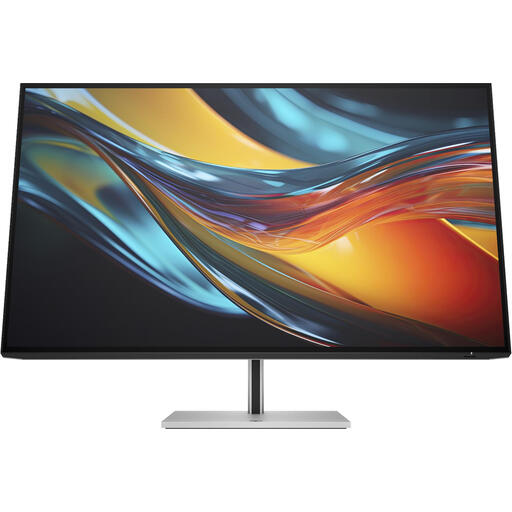 Image unavailable
An option if you want a larger display and Thunderbolt 4; check the native resolution and the camera and meeting features you need separately.
The product name lists a 31.5-inch screen, 4K and Thunderbolt 4.
No. 4K describes the screen resolution. Background blur needs to come from a compatible camera or meeting feature; Microsoft Teams offers blur and background replacement, depending on the environment you’re using.
Choose a video effect before joining and check the result. Microsoft Support warns that the feature isn’t available on every device or in every environment, and sensitive information may still be visible despite the effect.
Check whether your computer supports the 4K display mode you want, and whether its USB-C or Thunderbolt connection provides the necessary display, data and charging functions. Then check that the meeting app is using the camera you intend to use; a webcam doesn’t automatically mean that background effects are available.
The Dutch Data Protection Authority considers recognisable people in footage to be personal data. Check the camera angle, follow your organisation’s guidelines and don’t treat blur as guaranteed privacy protection.
For online purchases from a business, the Dutch government says you generally have 14 days to change your mind in many cases. If a product is faulty, contact the seller for a solution, such as a repair or replacement; exceptions and conditions may apply.