
Vandaag of morgen in huis

Kwaliteit gegarandeerd

Welkomstaanbiedingen ontgrendelen: GRATIS bezorging | Tot 80% korting | Gratis 30 dagen JoyPlus-proefperiode
Download de app
A 34-inch ultrawide monitor offers more workspace than a standard 16:9 screen. With a 21:9 aspect ratio, you can place windows side by side, enjoy a wider view of the race track or make more room for timelines in video-editing software. But a large screen isn’t automatically the right choice.
Many Dutch shoppers focus mainly on screen size and refresh rate. That can mean important details get overlooked, such as the connections, native resolution, stand adjustability and power consumption. Keep these points in mind to avoid being disappointed by a tempting deal.
A monitor with a 175Hz, 200Hz or 240Hz refresh rate can deliver smooth visuals, but only if your computer, graphics card and cable support it. On some models, the highest refresh rate is only available via DisplayPort. HDMI may have a lower limit.
Always check:
A 240Hz monitor is most appealing for competitive gaming if your computer can actually deliver a high frame rate. For office work or films, 100Hz to 120Hz is often enough.
Not every 34-inch monitor offers the same level of sharpness. 3440 x 1440, also known as UWQHD or ultrawide 3440 x 1440, gives you noticeably more vertical workspace than 2560 x 1080. You’ll see the difference when reading text, working with spreadsheets or editing images.
A 34-inch screen with 2560 x 1080 may be attractively priced, but it has a lower pixel density. So consider whether you’re mainly looking for extra width or also want a sharp image for long working sessions. For multitasking and content creation, 3440 x 1440 is generally a practical starting point.
Terms such as HDR, 0.03ms and “gaming ready” only tell you so much. Check the full specifications. For example, a quoted response time may depend on a particular overdrive setting. HDR support doesn’t automatically mean a screen offers the same brightness and contrast as a model with a certified HDR standard.
Pay attention to the panel too:
Treat claims about colour, speed or lifespan as information provided by the brand. Check the specific figures, certifications and warranty terms before you decide.
A curved 21:9 monitor with a 1500R or 1800R curve brings the sides slightly closer to your viewing position. This can be comfortable when using a wide desktop or playing games with panoramic visuals. The right curvature depends on your viewing distance and desk. Check the width too: many 34-inch models are around 80 to 81 centimetres wide, before you allow for cables.
Common refresh rate options for a 34-inch gaming monitor include 144Hz, 175Hz, 180Hz, 200Hz and 240Hz. A higher refresh rate can make motion look smoother, but it’s only useful if your PC can produce enough frames. AdaptiveSync or FreeSync can help reduce screen tearing when the frame rate fluctuates. Check whether support for your graphics card is officially confirmed or simply listed as a possible compatibility.
A monitor with USB-C is handy for laptop use, but check the USB-C Power Delivery wattage. 15W is very different from 65W, 90W or 100W. USB hubs can also vary in speed and number of ports.
These features can be useful for your workspace:
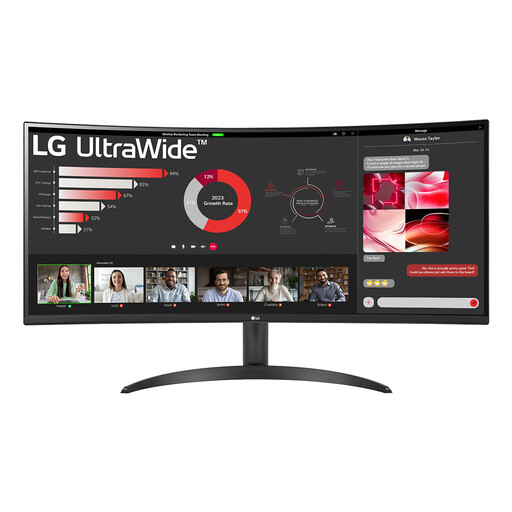
Why it suits this profile: This VA screen combines 3440 x 1440, 100Hz and an 1800R curve, making it suitable for office work, entertainment and light gaming.
Its resolution is higher than that of many widescreen Full HD models. Just check that 100Hz is available via your chosen connection.
3440 x 1440, VA panel, 100Hz, 1800R curve and Picture-by-Picture.
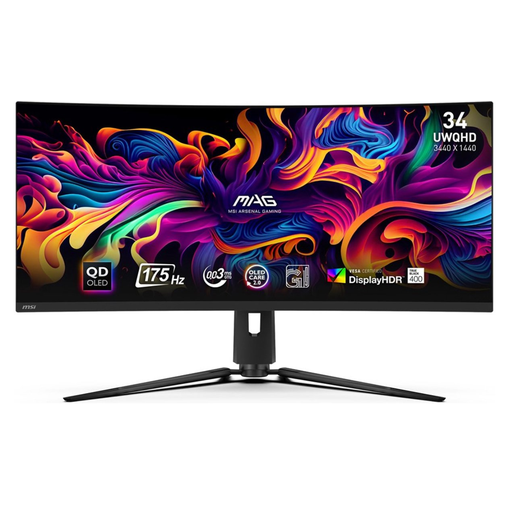
Why it suits this profile: This model is aimed at gamers and creators looking to combine QD-OLED, 175Hz and a spacious UWQHD workspace.
The specifications list 3440 x 1440, 175Hz and HDMI 2.1. If you use OLED, check the maintenance features and warranty cover for static interface elements.
QD-OLED panel, 175Hz, quoted response time of 0.03ms, HDMI 2.1 and USB-C with 15W Power Delivery.
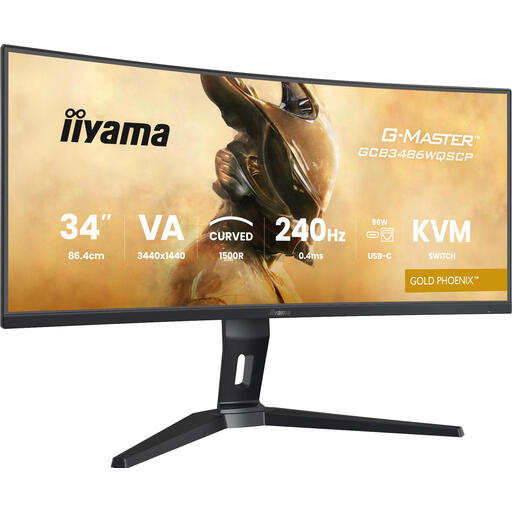
Why it suits this profile: Designed for esports, fast-paced games and working with multiple sources, this model offers high speed and extra control features.
The product details list 240Hz, DisplayPort 1.4 and HDMI 2.1. Check your graphics card and cable before expecting to reach this refresh rate.
240Hz, 3440 x 1440, 1500R curve, KVM switch and Picture-by-Picture/Picture-in-Picture.
We’ve put together a complete, up-to-date list of products that meet these strict selection criteria and current European safety regulations.
Yes, this resolution gives you room for multiple windows and generally keeps text sharper than 2560 x 1080 at the same screen size. Check that your laptop or docking station supports the resolution and refresh rate you want.
It varies by panel, brightness, HDR mode and refresh rate. Check the energy label and the quoted power consumption in SDR and HDR. OLED models may use different amounts of power for bright HDR images than they do for office work.
Often, yes. A high refresh rate makes scrolling feel smoother, and 21:9 is useful for multitasking. Also consider the stand, text clarity, USB-C functionality and available brightness settings. For a workspace, these are often more important than a low response time alone.
