Vandaag of morgen in huis

Kwaliteit gegarandeerd

Welkomstaanbiedingen ontgrendelen: GRATIS bezorging | Tot 80% korting | Gratis 30 dagen JoyPlus-proefperiode
Download de app
By Joy, Joybuy Product Recommendation Officer
Is your PC slow to boot, or are you constantly running out of space for your games and projects? Upgrading to a 2TB NVMe SSD can drastically reduce load times and give your system a noticeable performance boost. However, the market is flooded with technical jargon and marketing terms, which can make choosing the right one a challenge.
My goal is to help you make the right choice. As a Product Recommendation Officer at Joybuy, I cut through the noise to provide practical, spec-based advice. In this guide, we'll cover what to look for and highlight some of the top picks for 2026.
Before we dive into the products, here are a few key considerations to guide your decision.
NVMe SSDs use the PCIe interface on your motherboard. The generation (Gen) determines the maximum theoretical speed.
Always check which PCIe generation your motherboard supports. A newer SSD will work in an older slot, but it will be bottlenecked to that slot's lower speed.
Manufacturers often advertise sequential read and write speeds (in MB/s). This metric reflects how quickly the drive handles large, contiguous files, which is relevant when copying movies or rendering videos.
Just as important are the random read and write speeds, measured in IOPS (Input/Output Operations Per Second). This indicates how quickly the SSD can access small, scattered files. A high IOPS value ensures your operating system and games boot up swiftly. A fast 2TB SSD strikes a good balance between both metrics.
Virtually all modern NVMe SSDs use the M.2 2280 form factor. This small 'stick' fits directly onto the motherboard. For PC builders, it's simply a matter of checking for a free M.2 slot.
For a PS5 SSD 2TB upgrade, there are specific requirements. The SSD must be a PCIe 4.0 SSD with a minimum read speed of 5,500 MB/s. Additionally, a heatsink is mandatory to prevent overheating. Some SSDs come with an integrated heatsink.
Below is a selection of 2TB NVMe SSDs that stand out for their specifications and are suited for different types of users.
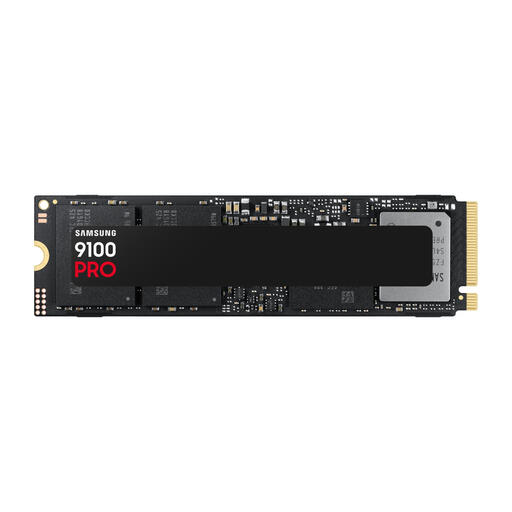
Why It Stands Out: This SSD leverages the latest PCIe 5.0 technology to deliver exceptional speeds. It's a future-proof model designed for systems that demand maximum throughput.
Highlights:
Who It's For: For professionals and PC enthusiasts with a modern, PCIe 5.0-compatible motherboard. Ideal for 8K video editing, 3D rendering, and other data-intensive tasks where every second counts.
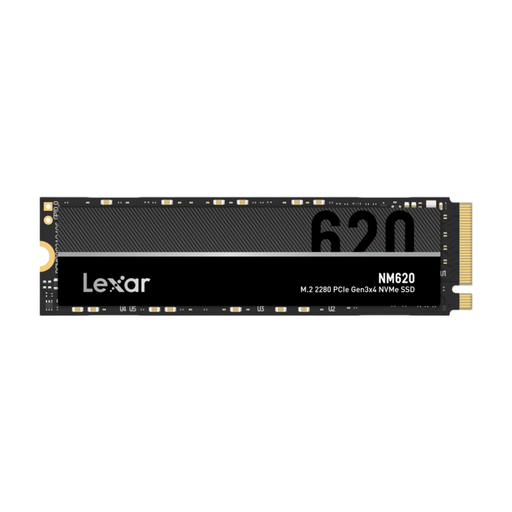
Why It Stands Out: The Lexar NM620 offers a solid performance upgrade over traditional SATA SSDs at an accessible price point. It's a reliable choice for a noticeable speed boost.
Highlights:
Who It's For: For PC users and gamers looking to upgrade from a hard drive or SATA SSD. An excellent choice for a value-oriented PC build or as extra storage for games and applications.
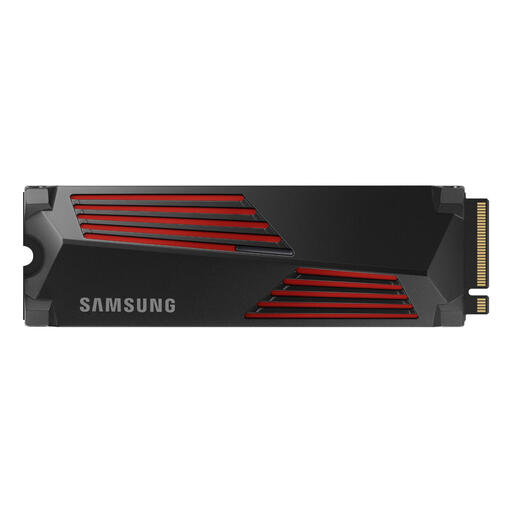
Why It Stands Out: This Samsung SSD 2TB combines high PCIe 4.0 speeds with a pre-installed heatsink. This makes it ready for immediate installation in both high-end PCs and the PlayStation 5, eliminating concerns about overheating.
Highlights:
Who It's For: The ideal candidate for serious PC gamers and PlayStation 5 users looking to expand their storage. Its combination of speed and cooling ensures stable performance during long gaming sessions.
Didn't find the perfect internal 2TB SSD for your needs? Every user and system is unique. For a broader overview of models with different specs and price points, you can browse our full selection.
? Explore all hard drive and SSD options on Joybuy.nl
1. What's the difference between an NVMe SSD and a SATA SSD? The main difference is the connection and speed. A SATA SSD uses a cable and maxes out at around 550 MB/s. An NVMe SSD plugs directly into an M.2 slot on the motherboard and communicates via the much faster PCIe interface, enabling speeds of several thousand MB/s.
2. Do I need a heatsink for my 2TB NVMe SSD? For PCIe 3.0 SSDs, it's usually not necessary. For faster PCIe 4.0 SSD and PCIe 5.0 models, a heatsink is highly recommended, especially under heavy workloads like gaming or video editing. It prevents 'thermal throttling,' a mechanism where the SSD slows itself down to avoid overheating. For use in a PS5, a heatsink is mandatory.
3. How do I install a 2TB M.2 SSD? The physical installation is straightforward. Power down your computer, locate the M.2 slot on your motherboard, insert the SSD at an angle, and secure it with a small screw. After booting up, the new drive must be 'initialized' and 'formatted' through your operating system's Disk Management utility (Windows or macOS) or via the PlayStation 5's system menu.