On a small desk, a 29-inch ultrawide with 2560 × 1080 pixels is the more compact option. A 34-inch model with 3440 × 1440 pixels gives you more horizontal and vertical workspace for your timeline, canvas and panels. Before choosing, measure the available space with the monitor stand in place. Also check that the resolution, connections and any colour features suit your computer and workflow.
Who is this choice relevant to?
Animator with limited desk space
Wants to see the timeline alongside the artwork, but first needs to check how much room will be left for the monitor stand and input devices. You can compare monitor dimensions and resolutions using information from LG Netherlands, among other sources.
Animator who wants to see lots of frames at once
Wants to keep the timeline, canvas and panels visible at the same time. Adobe explains how the timeline manages frames and how panels can be grouped or docked, so it’s worth comparing the screens’ vertical resolutions too.
Animator who also evaluates colour
As well as allowing room for the timeline, check the specified colour modes and whether they suit your intended output format. BenQ lists these specifications for the PD3420Q.
What should you consider when choosing?
The percentages refer to consumers considering an ultrawide monitor for organising animation frames on a small desk.
| What to consider |
What should you check? |
Who should weigh this more heavily? |
| Desk space |
Measure the available width and depth, then compare them with the dimensions of the exact model, including its stand. If you’re using a monitor arm, check the mount and weight capacity too. |
If the stand will sit on a small desk, I want to leave enough room for my keyboard or drawing tablet. Around 36% of consumers say fitting the monitor on their desk is their top priority. |
| Timeline and canvas |
Compare 2560 × 1080 with 3440 × 1440 pixels for your panel layout, and check that your computer supports the resolution you choose. |
If I want to see frames, the canvas and panels at the same time, I look beyond screen width alone. Around 29% of consumers prioritise having enough timeline space in view. |
| Colour features |
Check the colour mode and colour gamut specified for the exact model, then compare them with your intended output format. |
If I’m also evaluating colour, I want to know which colour modes the screen supports and what they mean for my output. Around 21% of consumers make colour evaluation their top priority. |
| Connecting a laptop |
Check your laptop’s video output, supported resolution and required charging power, as well as the monitor’s connections. |
If you use a laptop, you’ll want to know in advance whether the connection you want will support both the picture and power. Around 14% of consumers prioritise an easy laptop connection. |
Common pitfalls
-
Comparing screen size alone
The stand and screen width both affect how much room is left for other things. A monitor arm may be an option, but only if the mount, weight capacity and desk are suitable.
Measure the available space and compare it with the dimensions of the exact model, including the stand. Check the arm and mounting separately.
A monitor arm may require a different setup, so check in advance that your desk and chosen model are suitable.
-
Assuming an ultrawide always gives you plenty of vertical space
According to LG, the LG 29U511A-B has 2560 × 1080 pixels; the 34-inch WQHD models mentioned have 3440 × 1440 pixels. A wide screen alone doesn’t tell you how much vertical space you’ll get.
Check that your canvas, timeline and panels will all fit at the resolution you choose.
-
Assuming any USB-C laptop will work with a single cable
USB-C video and power depend on the capabilities of both the laptop and the monitor. Having the same connector shape doesn’t guarantee that both functions will be available.
Before relying on a single cable, check the video and power specifications of your laptop and the exact monitor model.
If the connection doesn’t meet your requirements, you may need a separate power adapter or a different video connection.
-
Assuming a two-year manufacturer’s warranty covers all your legal rights
ACM ConsuWijzer explains that statutory guarantees in the Netherlands don’t have a fixed two-year term. A commercial manufacturer’s warranty is separate from your legal rights against the retailer.
Keep your proof of purchase, and consider your statutory rights separately from any commercial warranty if a fault develops.
Brands to compare
LG
LG offers both a more compact 29-inch model with 2560 × 1080 pixels and a 34-inch model with 3440 × 1440 pixels.
- LG specifies IPS panels for the 29U511A-B and 34U650A-B.
- The 29U511A-B has fewer vertical pixels than the 34-inch WQHD models mentioned. Check the dimensions and adjustability of the exact version too.
BenQ
The PD3420Q is a 34-inch model worth comparing if colour features matter as well as timeline space.
- BenQ specifies 100% sRGB, 98% P3, a factory calibration report and 100 × 100 mm VESA mounting for the PD3420Q.
- BenQ lists the PD3420Q as 825,8 mm wide and 244,3 mm deep with the stand. These are model-specific figures, not established performance figures for the entire BenQ range.
Dell
The Dell P3425WE is a 34,1-inch model worth comparing for a laptop workstation with a USB-C hub.
- Dell lists IPS, 100 Hz, height adjustment and up to 90 W of USB-C power delivery for the P3425WE.
- Check that your laptop supports video through the connection you plan to use and that the monitor’s physical dimensions will fit your desk.
Philips
The Philips 346E2LAE/00 is a 34-inch WQHD option with USB-C, a hub and MultiView for anyone using multiple sources.
- Philips specifies a VA panel and 3440 × 1440 pixels for this model.
- Philips warns that your graphics card needs to support the desired maximum resolution and refresh rate. Also check that USB-C video and power will work with your computer.
Joybuy products for animation work
This selection from Joybuy includes a more compact 29-inch ultrawide and several 34-inch models for anyone looking for more screen space. Compare the resolution and connection with your own workstation and computer.
 No image available
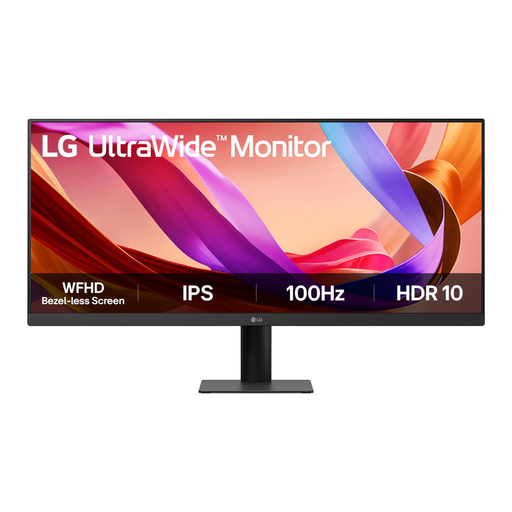
LG UltraWide 29U511A-B 29-inch IPS monitor, 100 Hz
A more compact ultrawide option if desk space is the priority. Check whether 1080 vertical pixels are enough for your canvas and panels.
29 inches; 2560 × 1080 pixels according to LG; IPS; 100 Hz.
View at Joybuy
 No image available
LG UltraWide 34U601B-B 34-inch WQHD VA monitor
A 34-inch option worth comparing if you’re looking for more screen space. Measure your available desk space before choosing.
34 inches; WQHD; VA panel; 1800R curvature; 120 Hz.
View at Joybuy
 No image available
LG UltraWide 34U650A-B 34-inch monitor
A 34-inch model with 3440 × 1440 pixels to consider if your timeline and canvas need more workspace and your desk can accommodate it.
34 inches; 3440 × 1440 pixels; IPS, according to LG.
Check that your computer’s video and power capabilities are compatible with the connection you want to use.
View at Joybuy
 No image available
Philips 6000 series 34B2U6603CH/00 34-inch monitor
A 34-inch option for anyone looking for more room for a timeline and canvas. Check that your computer supports the desired resolution through the connection you plan to use.
34 inches; 3440 × 1440 pixels; Wide Quad HD; LCD.
View at Joybuy
 No image available
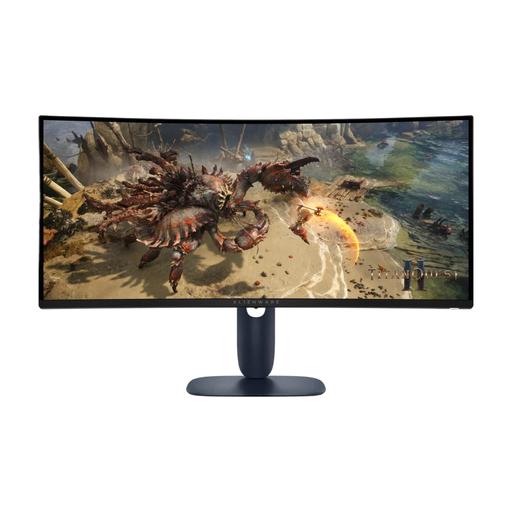
Alienware AW3425DWM 34-inch monitor
A 34-inch ultrawide to compare if you want to use your timeline and drawing area on the same screen. Bear in mind how much desk space you’ll need.
34 inches; 3440 × 1440 pixels; Wide Quad HD; LCD.
View at Joybuy
Frequently asked questions
How can I arrange the timeline without making the drawing area unnecessarily small?
Start by adjusting your workspace layout: Adobe explains that panels can be grouped, stacked or docked. Then compare whether 2560 × 1080 or 3440 × 1440 pixels gives you enough room for your timeline, canvas and panels.
Can I use a monitor arm on any small desk?
No. A VESA mount alone doesn’t mean that every arm or desk will be suitable. According to BenQ, the PD3420Q has 100 × 100 mm VESA mounting; you should also check the arm’s weight capacity, the mounting and whether your desk is suitable.
What workplace rules apply if I spend long periods in front of a screen as an employee?
The Dutch Arboportaal outlines employers’ obligations regarding screen work. For more than two hours a day, it lists rules for workstation setup and a height-adjustable screen. Under the conditions described, exceptions may be made if safety and health are maintained. This isn’t a product specification or an automatic requirement for every private buyer.
What about energy labels, the cooling-off period and the warranty when buying online in the Netherlands?
The European Commission states that electronic displays are covered by energy labelling rules; compare the label for the exact model. ACM ConsuWijzer says that online purchases generally come with a statutory cooling-off period of up to 14 days after delivery. According to ACM ConsuWijzer, statutory guarantees in the Netherlands don’t have a fixed two-year term.


