
Vandaag of morgen in huis

Kwaliteit gegarandeerd

Welkomstaanbiedingen ontgrendelen: GRATIS bezorging | Tot 80% korting | Gratis 30 dagen JoyPlus-proefperiode
Download de app
A 240Hz gaming monitor can display movement more smoothly than a standard 60Hz or 144Hz screen. This is especially useful for competitive PC games, fast-paced shooters and sim racing. However, a high number on the box doesn’t automatically mean a better gaming experience. Your graphics card, connection, resolution and panel technology all determine whether you’ll get the most out of your investment.
A monitor may support 240Hz, but your PC also needs to produce around 240 frames per second. That isn’t always possible in a demanding QHD or ultrawide game. So first, check how your graphics card performs in the games you play.
Pay attention to the connection, too. Some models only reach their maximum refresh rate via DisplayPort, while HDMI has a lower limit. For example, the Samsung Odyssey G4 G40H supports up to 300Hz via DisplayPort, but a maximum of 240Hz via HDMI. You’ll therefore need the right cable and a compatible source.
Specifications such as “0.03ms” or “1ms” aren’t always directly comparable. MPRT, GtG and “minimum response time” refer to different measurement methods and settings. An advertised 1ms response time, for example, may only apply in a specific overdrive or motion mode.
So consider the whole picture: refresh rate, panel type, test mode, Adaptive Sync and the ability to fine-tune overdrive. A monitor with a 1ms response time isn’t automatically free from ghosting.
A label such as HDR10 or HDR Ready means the monitor can process HDR signals. On its own, it says little about brightness, local dimming or the visible impact in games. Check the stated brightness and any DisplayHDR certification.
With OLED models, deep blacks and contrast are generally defining features of the technology. It’s still a good idea to use the built-in OLED protection features and limit prolonged display of static images. The manufacturer’s instructions and warranty terms remain the best guide.
240Hz means the screen can display up to 240 refreshes per second. The difference compared with 144Hz is most noticeable when your computer can also achieve a high frame rate. For competitive gaming, a stable frame rate and low input lag matter more than simply having the highest theoretical speed.
Set the correct refresh rate in Windows and your graphics card’s control software. A monitor won’t always switch to 240Hz automatically when connected.
A Full HD gaming monitor puts less strain on your graphics card than a QHD gaming monitor. Full HD is a practical choice for esports and smaller screen sizes, such as 23.8 or 24 inches. At 27 inches, QHD gives you a sharper image and more room for games, streaming and productivity.
VA panels are often known for their high contrast. IPS panels generally offer wide viewing angles and consistent colours. An OLED gaming monitor uses self-lit pixels to produce deep blacks, but requires more attention to OLED Care and static interface elements.
A curved gaming monitor can help position the image more evenly within your field of view, particularly on wider screens. The curve matters more on a 34-inch ultrawide or 49-inch SuperWide than on a compact 24-inch screen.
FreeSync, FreeSync Premium and G-SYNC Compatible can help reduce tearing and stuttering when the frame rate changes. How well they work depends on your graphics card, drivers, cable and settings. A model may, for example, be listed by the manufacturer as supporting FreeSync or G-SYNC Compatible; always check whether your setup is officially supported.
Also check:
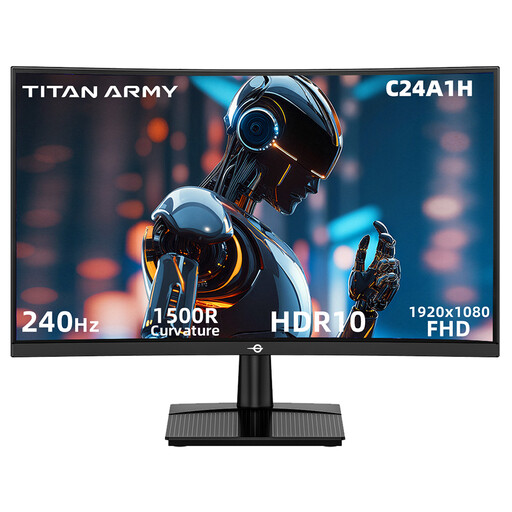
Why it suits this profile: This 23.6-inch model combines Full HD, 240Hz and a 1500R curve for a compact gaming setup.
The specifications list 240Hz, 1ms MPRT and HDMI 2.0/DisplayPort 1.2 with support for 1080p at 240Hz separately. Be sure to check your PC settings.
VA panel, stated 3000:1 contrast, HDR10 support and FreeSync Compatible.
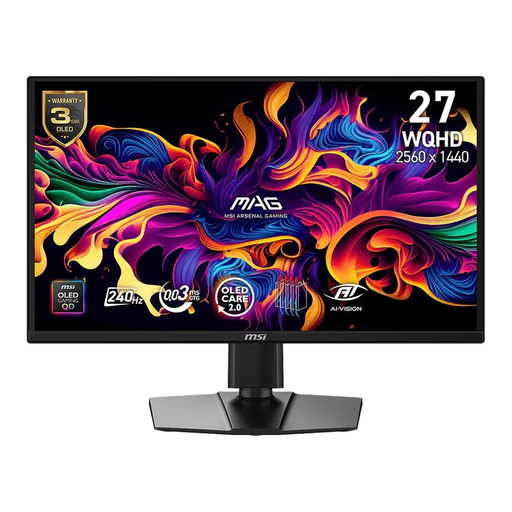
Why it suits this profile: For gamers looking to combine QHD sharpness, OLED contrast and fast response in one 26.5-inch screen.
The product details list WQHD, 240Hz and 0.03ms GtG separately. Adaptive Sync, FreeSync Premium and G-SYNC Compatible are supported, but require compatible hardware.
QD-OLED panel, DisplayHDR True Black 400 and an ergonomic stand with height, swivel and tilt adjustment.
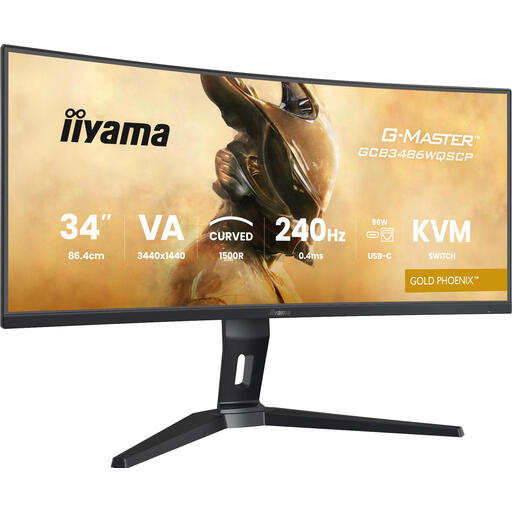
Why it suits this profile: A natural choice for sim racers and anyone who uses multiple windows, streams or documents side by side as well as gaming.
The 34-inch UWQHD resolution and 240Hz are paired with DisplayPort 1.4 and HDMI 2.1. Check in advance that your PC can handle this resolution at a high frame rate.
1500R curve, FreeSync Premium, built-in KVM switch, PiP/PbP and 130mm height adjustment.
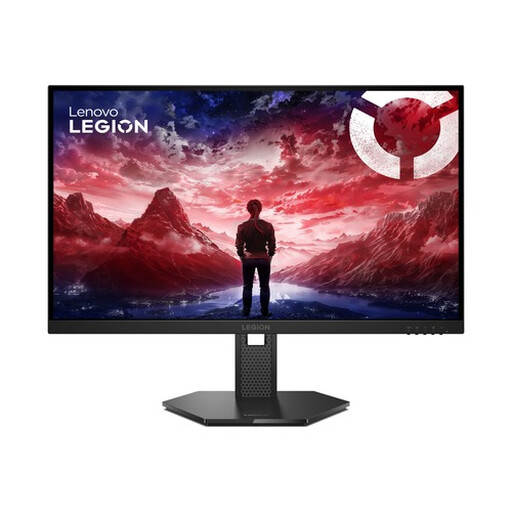
Why it suits this profile: Full HD keeps the graphics workload manageable, while the screen is designed for fast-paced games and an adjustable setup.
The stated 240Hz is paired with Adaptive Sync, FreeSync Premium and G-SYNC Compatible. Performance still depends on your graphics card, cable and drivers.
IPS panel, 0.5ms MPRT, HDR10 and a stand with height, swivel, tilt and pivot adjustment.
We’ve put together a complete, up-to-date list of products that meet these strict selection criteria and the applicable European safety regulations.
A mid-range graphics card can achieve high frame rates in less demanding esports games. QHD, ultrawide and graphically demanding games require more processing power. If needed, lower a few graphics settings to get a more stable frame rate.
It depends on the resolution and monitor. Check the DisplayPort and HDMI specifications for your monitor. Use a cable that supports the resolution and 240Hz you want. Then select the correct refresh rate in Windows and your GPU control panel.
Power consumption varies depending on the panel, brightness, HDR mode and screen size. A large ultrawide or OLED screen may use more power than a compact Full HD monitor. Check the energy label and the stated SDR and HDR figures before you buy.
