
Layout designer with limited desk space
If you want to edit pages while leaving room for input devices or proofs, compare the monitor’s overall dimensions, including its stand. ASUS and EIZO’s specifications can help you compare models.


Start by measuring the usable width and depth of your desk. A 24-inch 16:10 monitor will generally make for a more compact setup, while a 27-inch screen gives you more room for the page and tool panels if the larger footprint fits. ASUS and EIZO specify compact 24-inch models with 1920 × 1200 pixels; the 27-inch models considered here offer QHD or 4K. For colour-critical print work, a stated colour space is no substitute for the printer’s output profile.
If you want to edit pages while leaving room for input devices or proofs, compare the monitor’s overall dimensions, including its stand. ASUS and EIZO’s specifications can help you compare models.
If you assess colour for print, check the stated colour space and calibration options, as well as the output device’s profile. EIZO publishes specifications for the CS2400S, while Adobe explains how to use a suitable ICC profile when printing.
If you want to see more of a page and the layout interface at the same time, consider a screen with more pixels, provided it fits on your desk. ASUS and BenQ publish the resolutions of the 27-inch models mentioned here.
Best for: a desk where you need to keep the work surface clear and mainly want to lay out one page alongside tool panels. ASUS and EIZO specify 1920 × 1200 pixels for the models mentioned here.
Trade-off: the 27-inch QHD and 4K models considered here have more pixels for displaying detail.
Best for: anyone who wants a larger workspace and has room for a bigger monitor. According to ASUS, the PA278CV offers 2560 × 1440 pixels and USB-C with 65 W power delivery.
Trade-off: this model takes up more space than the 24-inch option considered here and has fewer pixels than the 27-inch 4K BenQ mentioned here.
Best for: anyone who wants more room for detail and can accommodate the monitor’s overall dimensions, including its stand. BenQ specifies 3840 × 2160 pixels for the PD2705U.
Trade-off: according to BenQ, the monitor with stand has an overall depth of 256,8 mm; measure up to make sure the setup leaves enough room on your desk.
| What to consider | What should you check? | Who is this important to? |
|---|---|---|
| Desk space | Measure the available width and depth, then compare them with the monitor’s dimensions, including the stand. Also check whether a monitor arm can be attached to your desk. | If I want to leave room for a keyboard or proofs, I prioritise the stand’s dimensions over the screen diagonal alone. Around 31% of consumers put desk space first. |
| Colour for print | Compare the stated colour space for each model and ask your printer which ICC profile is right for the output device and paper. Adobe explains how to use a suitable output profile. | If you want to assess colours for a specific printer, you’ll benefit from both model specifications and a suitable colour-management workflow. Around 25% of consumers give print colour top priority. |
| Page detail and panels | Compare both the resolution and the overall dimensions, and decide which display scaling works comfortably on your computer. ASUS, EIZO and BenQ publish these specifications for the monitors mentioned here. | If I want to see the page and layout panels at the same time, or check fine details, I weigh up the extra pixels against the desk space required. Around 25% of consumers choose detail display as their top consideration. |
| Connection and ergonomics | Check that your computer supports video through the connection you’ve chosen and that the power delivery is sufficient. Also compare the stand and adjustment options for the specific model; ASUS lists USB-C video and 65 W power delivery for the PA278CV. | If you want to connect a monitor to your own laptop and position it comfortably, check compatibility before buying. Around 19% of consumers prioritise connection and positioning. |
The stand takes up space too. The stated depth, including the stand, varies by model and can determine how much room is left for proofs.
Measure the available desk depth and compare it with the overall dimensions of the complete monitor. Separately check whether a VESA arm, if you plan to use one, can be attached to your desk.
If the stand takes up too much workspace, you may need a different stand or a monitor arm.
A screen specification alone can’t determine how colours will look on your chosen printer and paper.
Ask your printer which output profile you need and agree on the proofing process. Adobe explains how to use an ICC profile suited to the output device.
Colour management or a physical proof may involve additional costs.
The video connection and power delivery need to be compatible with both your computer and monitor. ASUS specifies USB-C video and up to 65 W power delivery for the PA278CV.
Check your computer’s video and charging requirements against the full specifications of the model you choose.
You may need a different cable, an adapter or a separate power supply if your existing connection isn’t suitable.
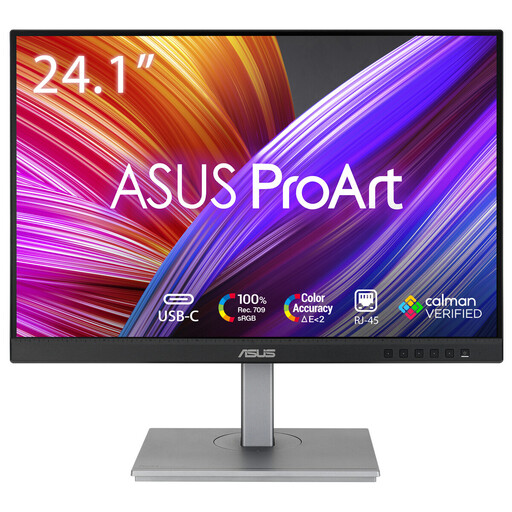
The ProArt models considered here include a 24.1-inch 16:10 screen and a 27-inch QHD screen.
The ColorEdge CS2400S is a 24.1-inch 16:10 model for a compact workspace.
The Creative Pro PD2705U considered here combines a 27-inch screen with 4K resolution.
The UltraSharp U2723QE considered here is a 27-inch 4K monitor with USB-C hub features.
This selection includes compact 24-inch monitors and larger 27-inch screens for anyone weighing up desk space against resolution and detail when laying out a magazine.
 No image available
Ideal if you’re looking for a more compact monitor for page layout on a small desk.
24.1 inches; 1920 × 1200 pixels.
 No image available
A 24-inch option to consider if you want QHD resolution on a more compact screen.
24 inches; 2560 × 1440 pixels.
 No image available
Ideal if you want more room for detail and have enough space for a larger screen.
27 inches; 3840 × 2160 pixels.
 No image available
A 27-inch 4K option if you want more screen detail and have room for the larger size.
27 inches; 3840 × 2160 pixels.
 No image available
Ideal if you’re considering a larger screen with 4K resolution and have the desk space for it.
27 inches; 3840 × 2160 pixels.
No, not on its own. sRGB coverage is a screen specification; Adobe also describes using an ICC profile suited to the output device for colour-managed printing. Ask your printer which settings are required and discuss whether a proof is needed.
Only if both the monitor model you choose and your laptop support the required video function, and the power delivery is sufficient. ASUS lists video over USB-C and 65 W power delivery for the PA278CV; the PA248QV’s connection list does not include USB-C video.
Measure the stand’s depth too, and adjust the screen to suit you. For employees who work at a screen for more than two hours a day, Arboportaal lists workplace requirements, including a height-adjustable, non-reflective screen. These workplace rules do not automatically apply to every private buyer.
Check the European energy label and energy consumption information for the model you choose; electronic displays are covered by European energy-labelling rules. According to the Dutch government, consumer purchases in the Netherlands are covered by a legal guarantee in addition to any manufacturer’s warranty: if a product is faulty, the seller must provide a solution. The Dutch government states that the Netherlands has no fixed statutory warranty period.
According to the Dutch government, consumers who buy at a distance are entitled to a 14-day cooling-off period in many cases. Check the terms of the specific purchase; this does not apply to every business or private transaction.