
Vandaag of morgen in huis

Kwaliteit gegarandeerd

Welkomstaanbiedingen ontgrendelen: GRATIS bezorging | Tot 80% korting | Gratis 30 dagen JoyPlus-proefperiode
Download de app
A 144Hz monitor displays up to 144 frames per second. This can make movement look smoother when gaming, scrolling and watching videos, but only if your computer or console can provide enough frames. Refresh rate isn’t the only thing you need to consider.
Many buyers run into the same pitfalls:
Check the right things in the right order, and you can avoid paying a premium just for marketing terms.
A 144Hz gaming monitor will only run at 144Hz if your PC, laptop or console supports that signal. So check the following:
So, a 144Hz monitor isn’t automatically faster in every situation. For office work, you’ll notice smoother scrolling and window movement; for gaming, a suitable graphics card is just as important.
An IPS monitor typically offers wide viewing angles and consistent colour reproduction. That’s useful for working from home, photo editing, films and multi-monitor setups. Also consider the size:
So the choice between 24 and 27 inches depends not just on your budget, but also on your viewing distance, desk space and preference for sharp text.
A quoted response time of 1 ms MPRT isn’t the same as 1 ms GtG. MPRT is often linked to motion clarity and settings such as backlight strobing, while GtG describes the transition between shades of grey. So always compare like-for-like measurement methods.
Also look out for:
A monitor with HDR Ready or HDR support can process HDR signals, but the visible impact depends largely on brightness, contrast and the content you watch.
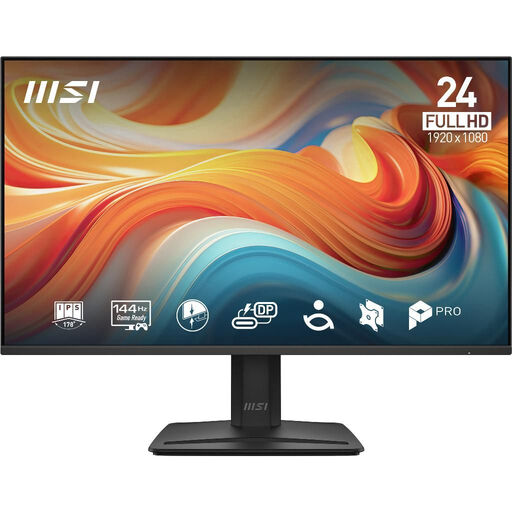
Why it suits this type of user: This 24-inch Full HD monitor fits neatly on a compact desk and combines an IPS panel with 144Hz for gaming and everyday computing.
The product description lists 144Hz as well as the HDMI, DisplayPort and headphone connections. The tilting stand and Adaptive-Sync are also clearly mentioned.
24-inch IPS, 1920 × 1080, 144Hz, 5 ms MPRT, 1 HDMI, 1 DisplayPort and a tilt range of -5° to 15°.
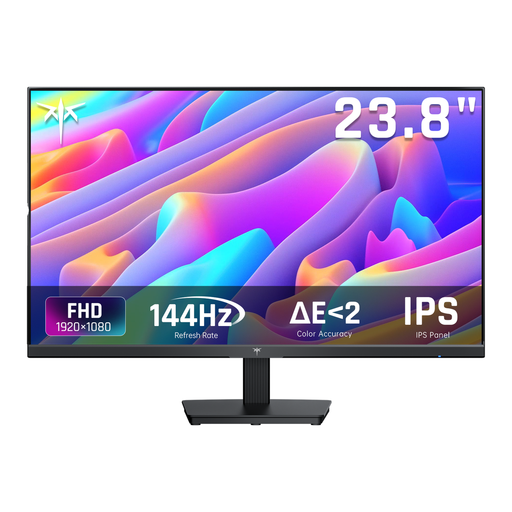
Why it suits this type of user: This 23.8-inch monitor is designed for users looking for a screen for office work and gaming, with added emphasis on connectivity and colour reproduction.
The specifications distinguish between 1 ms MPRT and 4 ms GtG. They also list HDMI 2.0b, DisplayPort 1.2a, VGA and VESA 100 × 100 mm.
IPS panel, 144Hz, HDR Ready, Adaptive-Sync, 121% sRGB according to the product information, and two built-in 2W speakers.
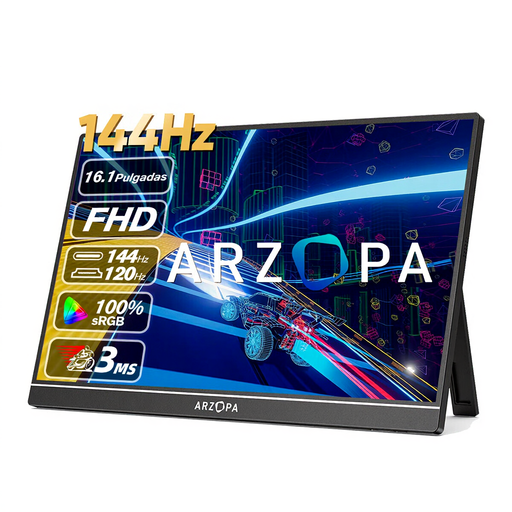
Why it suits this type of user: This portable screen is designed as a second screen for a laptop, PC or console. Weighing 780 grams and with an integrated kickstand, it’s practical for use at home, while studying and when travelling.
The connections are clearly listed: two USB-C ports and mini-HDMI. Check in advance whether your laptop can output video via USB-C or needs power.
16.1-inch IPS, 1920 × 1080, 144Hz, 300 cd/m², HDR10 according to the product information, 106% sRGB and built-in 2W speakers.
We’ve put together a complete, up-to-date list of products that meet these strict selection criteria and current European safety requirements.
Yes. The benefits aren’t limited to gaming. A higher refresh rate can make mouse movements, window animations and scrolling look smoother. For working with text, resolution, screen size, viewing distance and ergonomics are more important than 144Hz alone.
Not always. It depends on the monitor, the HDMI version and the connected computer. Check the product specifications and use a cable that supports the signal you want. If in doubt, DisplayPort is often a practical choice for a PC, but it isn’t essential in every case.
Power consumption may be higher than at a lower refresh rate, but the difference varies by model, brightness and operating mode. Check the energy label and the stated values for SDR and HDR. If you don’t need 144Hz for office work, lower the refresh rate if your model and operating system make it easy to do so.
